
Most gaming laptops have soldered GPUs, so upgrading is usually not possible. Only some rare models support external GPUs or modular designs. For most users, upgrading RAM, SSD, or buying a new laptop is the practical solution for better performance.
This guide explains what is actually possible, which upgrade methods work, how much they cost, and whether upgrading your gaming laptop GPU is truly worth it in 2026.
Can Laptop Graphics Cards Be Replaced?
In most modern gaming laptops, the GPU cannot be replaced internally.
Unlike desktop PCs, gaming laptops are designed to save space, reduce weight, and improve cooling efficiency. Because of this, manufacturers usually solder the graphics chip directly onto the motherboard.
That means:
- No removable graphics card
- No PCIe GPU slot like desktops
- Limited upgrade options
Why Are Laptop GPUs Soldered?
Manufacturers use soldered GPUs because laptops need:
- Smaller internal designs
- Better power efficiency
- Compact cooling systems
- Lower heat output
This design helps make laptops thinner and lighter, but it also makes hardware upgrades much harder.
Are There Any Exceptions?
Yes, but they are rare.
Some older or high-end laptops use MXM (Mobile PCI Express Module) graphics cards. These GPUs can sometimes be replaced, though compatibility remains limited.
Examples include:
- Older Alienware laptops
- Some Clevo models
- Certain workstation laptops
However, MXM upgrades are expensive, hard to find, and not guaranteed to work properly.
For most gamers, internal GPU upgrades are not realistic.
Internal GPU Upgrade vs External GPU:
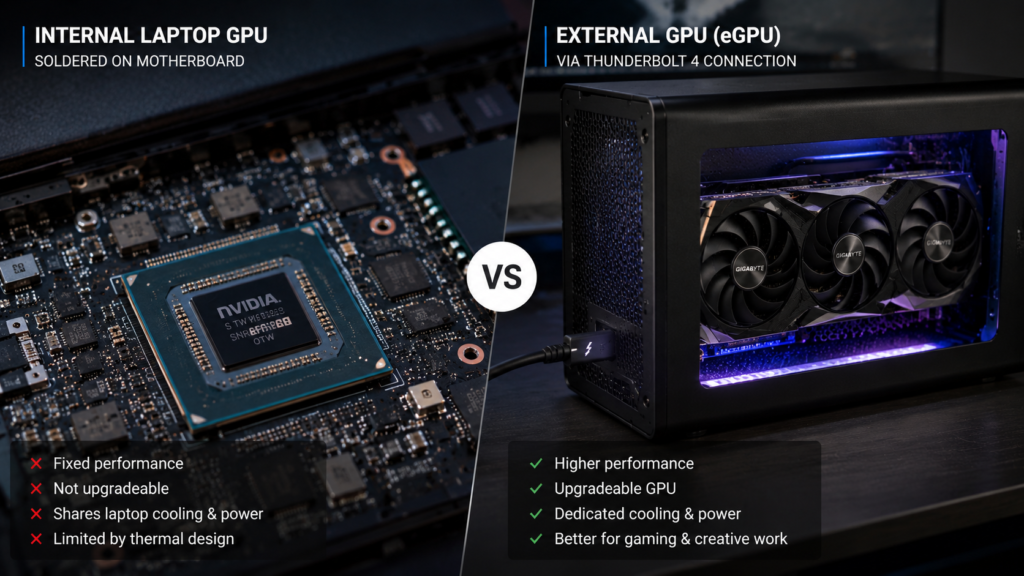
There are two main ways people try to improve the graphics performance of gaming laptops.
| Upgrade Type | How It Works | Difficulty | Common? |
| Internal GPU Upgrade | Replace the internal laptop GPU | Very difficult | Rare |
| External GPU (eGPU) | Connect the desktop GPU externally | Easier | More common |
The biggest difference is simple:
- Internal upgrade replaces existing hardware
- An external GPU adds new hardware outside the laptop
Today, external GPUs are the most practical solution.
What Is an External GPU (eGPU)?
An external GPU, also called an eGPU, is a desktop graphics card connected to your laptop through a high-speed port such as Thunderbolt 3 or Thunderbolt 4.
The GPU sits inside a separate enclosure that provides:
- Power supply
- Cooling
- GPU connection ports
Your laptop then uses the external graphics card for gaming, video editing, 3D rendering, and other demanding tasks.
Many gamers use eGPUs to extend the life of older laptops without buying a completely new system.
You can also check official external GPU compatibility and setup recommendations from Intel’s Thunderbolt technology page.
How Does an eGPU Work?
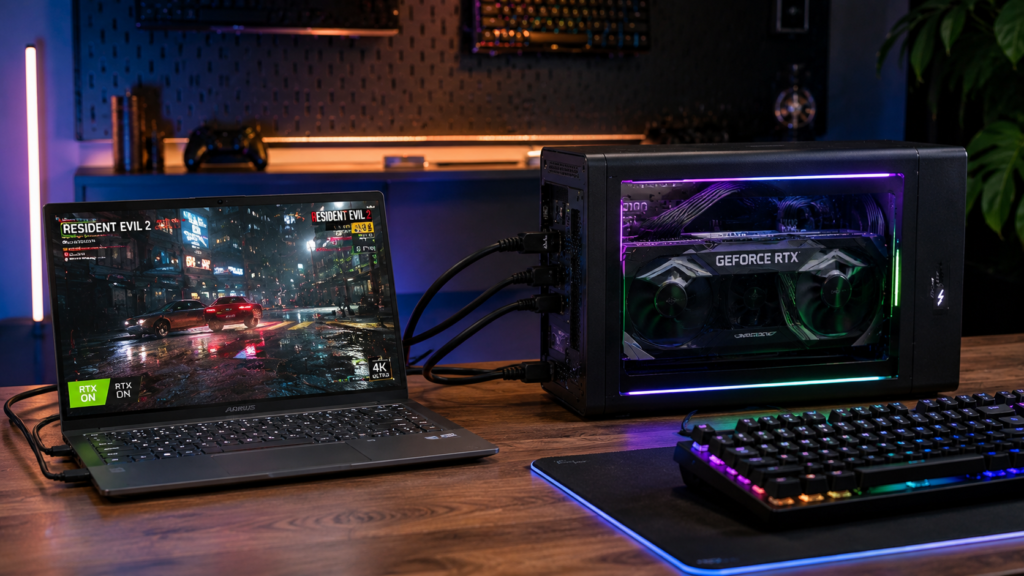
The setup is fairly simple:
- Install a desktop GPU inside the enclosure
- Connect the enclosure to the laptop
- Install graphics drivers
- Restart the system
- Configure GPU settings
Once connected, supported games and software can automatically use the external GPU.
Popular GPUs for eGPU setups include:
- NVIDIA GeForce RTX 4060
- NVIDIA GeForce RTX 4070
- AMD Radeon RX 7800 XT
What Do You Need for an eGPU Setup?
Before upgrading, check whether your laptop supports external GPUs.
Minimum Requirements:
Thunderbolt 3 or Thunderbolt 4:
This is the most important requirement. Without Thunderbolt support, most eGPUs will not work properly.
Compatible Operating System:
Windows 11 works best for modern eGPU setups.
Strong CPU:
A weak processor can bottleneck GPU performance.
External GPU Enclosure:
Popular eGPU enclosures include:
- Razer Core X
- Sonnet Breakaway Box
- Aorus Gaming Box
Important Limitations of eGPUs:
External GPUs work well, but they are not perfect.
Performance Loss:
An eGPU usually performs slightly worse than the same GPU inside a desktop PC because Thunderbolt bandwidth is limited.
In real gaming tests, performance loss is often around:
- 10% to 25%
The exact difference depends on:
- Laptop CPU
- Thunderbolt version
- Game optimization
- Display setup
Can You Upgrade the GPU in Any Gaming Laptop?
No, Most gaming laptops released in the last few years do not support internal GPU upgrades.
Common brands like:
- ASUS ROG
- MSI
- Acer Predator
- Lenovo Legion
- HP Omen
usually use soldered GPUs.
Some models support eGPUs, but very few allow true internal upgrades.
How To Upgrade a Gaming Laptop GPU?
If your laptop supports upgrades, follow these steps.
Check Compatibility:
Look for:
- Thunderbolt 3 or 4 port
- MXM slot support
- Manufacturer documentation
- BIOS compatibility
Never buy upgrade hardware before confirming support.
Choose Your Upgrade Method:
Internal MXM Upgrade:
Only possible on limited laptops.
External GPU Setup:
Best option for most users.
An eGPU setup is usually safer and easier than replacing internal components.
Install Drivers:
Download:
- Latest NVIDIA or AMD drivers
- Thunderbolt drivers
- BIOS updates if needed
Updated drivers help reduce compatibility problems.
Test Gaming Performance:
After setup:
- Run benchmark software
- Test FPS in games
- Monitor temperatures
- Check GPU usage
Useful tools include:
- MSI Afterburner
- 3DMark
- HWMonitor
Best Gaming Laptops for GPU Upgrades:
Very few laptops support internal GPU upgrades today, but many premium models support eGPUs.
Good choices include laptops with:
- Thunderbolt 4 support
- Powerful CPUs
- Strong cooling systems
- Upgrade-friendly BIOS
Gaming laptops with Intel processors usually offer better Thunderbolt compatibility.
How Much Does a Laptop GPU Upgrade Cost?
GPU upgrades are often more expensive than people expect.
Internal GPU Upgrade Costs:
MXM graphics cards are:
- Rare
- Expensive
- Hard to find
In many cases, the cost is not worth the performance gain.
eGPU Setup Costs:
Typical costs include:
- eGPU enclosure
- Desktop graphics card
- Power supply
- Thunderbolt cable
A full setup can sometimes cost nearly as much as a new gaming laptop.
That is why many users eventually choose a full laptop upgrade instead.
Gaming Performance After a GPU Upgrade:
A GPU upgrade can improve:
- FPS in modern games
- Ray tracing performance
- Video rendering speed
- Streaming performance
However, results depend heavily on the laptop itself.
For example:
- A weak CPU may bottleneck the GPU
- Limited cooling may reduce performance
- Older Thunderbolt ports may slow data transfer
Even powerful GPUs cannot fully overcome hardware limitations inside older laptops.
Want to monitor whether your GPU upgrade is actually improving performance and temperatures? How Much GPU Usage Is Normal?
Common GPU Upgrade Problems:
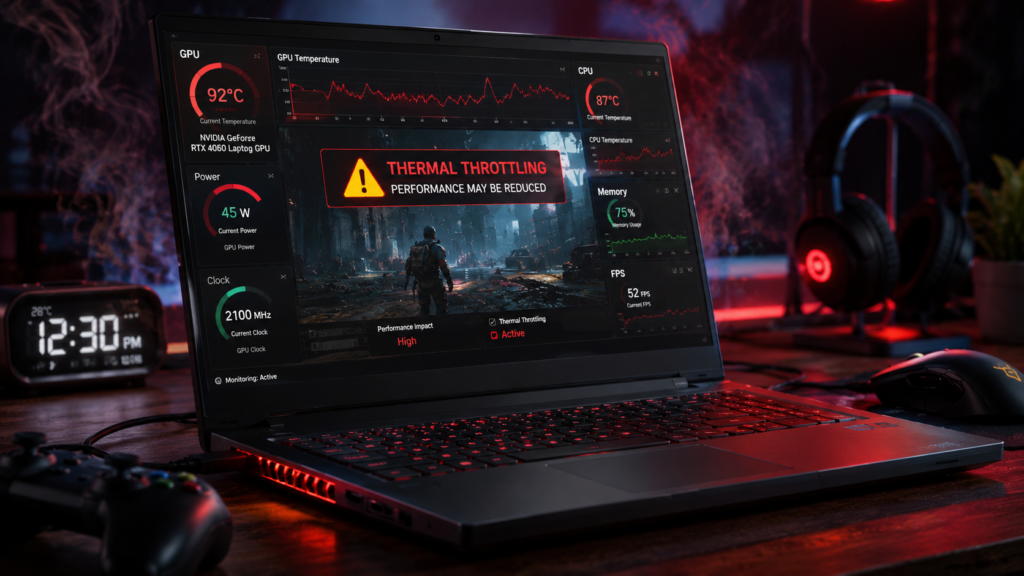
Laptop GPU upgrades can cause several issues.
GPU Not Detected:
Possible causes:
- Driver conflicts
- BIOS restrictions
- Faulty Thunderbolt connection
Overheating:
External GPU enclosures still generate heat. Poor airflow can reduce performance during long gaming sessions.
Low FPS Improvement:
Some users expect desktop-level performance, but eGPU bandwidth limitations can reduce gains.
High temperatures can reduce gaming performance and damage laptop components over time. What Is Too Hot for a GPU?
NVIDIA vs AMD for eGPU Gaming:
Both NVIDIA and AMD GPUs work in external GPU setups.
NVIDIA Advantages:
- Better DLSS support
- Stronger ray tracing
- Wider game compatibility
AMD Advantages:
- Better price-to-performance
- Competitive rasterization performance
For most gaming laptops, NVIDIA GPUs are usually the easier option because game support tends to be more consistent.
Risks of Upgrading a Gaming Laptop GPU:
Before spending money, understand the risks.
Main risks include:
- High upgrade cost
- Compatibility problems
- Limited performance gains
- Warranty issues
- Driver instability
This is why many experts recommend upgrading the entire laptop rather than replacing the GPU.
Better Alternatives to GPU Upgrades:
Sometimes upgrading is not the smartest solution.
Buy a New Gaming Laptop:
A newer system offers:
- Better efficiency
- Modern GPUs
- Improved cooling
- Longer lifespan
Optimize Your Current Laptop:
You can improve gaming performance by:
- Updating drivers
- Lowering graphics settings
- Cleaning background apps
- Upgrading RAM
- Installing an SSD
These upgrades are cheaper and safer.
Try Cloud Gaming:
Services like cloud gaming allow users to play demanding games without powerful hardware.
This avoids expensive GPU upgrades entirely.
Use an External GPU:
If your laptop supports Thunderbolt 3 or 4, an eGPU is usually the best upgrade option available.
FAQ’s:
Can all gaming laptops upgrade GPUs?
No, Most gaming laptops use soldered GPUs that cannot be replaced.
Can desktop GPUs work with laptops?
Yes, through external GPU enclosures that use Thunderbolt connections.
Is upgrading a gaming laptop’s GPU worth it?
Usually, only possible if your laptop already supports eGPU or MXM upgrades.
How long do gaming laptop GPUs last?
Most gaming laptop GPUs last around 4 to 6 years with proper cooling and maintenance.
Is upgrading a gaming laptop GPU difficult?
Yes, Internal upgrades are complex, and even eGPU setups require compatibility checks and additional hardware.
Conclusion
Upgrading a gaming laptop GPU is possible in some situations, but it is much more limited than upgrading a desktop PC. Most modern laptops use soldered graphics chips, which means internal GPU replacements are usually impossible.
For most gamers, external GPUs are the only realistic upgrade path. They can improve gaming performance, but they also come with extra costs, setup requirements, and some performance limitations.
Before investing in a GPU upgrade, compare the total cost with buying a newer gaming laptop. In many cases, a modern laptop delivers better long-term value, better cooling, and fewer compatibility problems.