
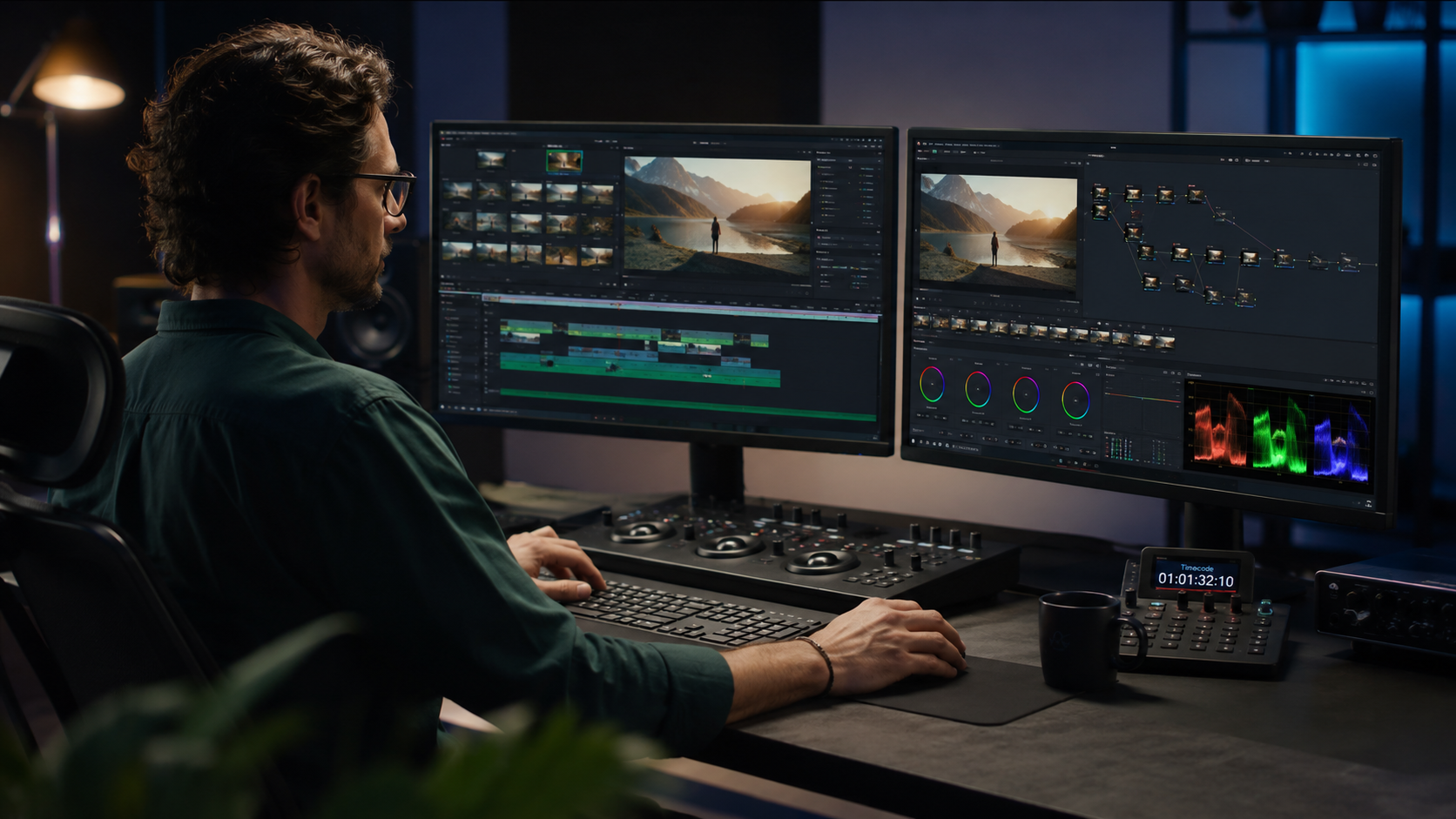
Blackmagic RAW (BRAW) is a professional video format developed by Blackmagic Design. It combines high image quality with smaller file sizes, allowing filmmakers and video editors to record cinematic footage while keeping editing smooth, fast, and more flexible during color grading and post-production work.
In this guide, you will learn how BRAW works, its advantages, system requirements, editing workflow, and whether it is the right format for your projects.
If your footage appears too dark, too bright, or slightly off in color, BRAW gives you far more room to fix those issues later without seriously damaging image quality.
How BRAW Works (Explained Simply)
BRAW uses a hybrid processing system that splits the workload between the camera and your editing software.
Part of the image processing occurs directly in the camera, while the remaining processing is performed during editing on the GPU. This approach improves playback performance and reduces the heavy workload usually associated with traditional RAW formats.
Because of this design, BRAW offers:
- Smaller file sizes
- Faster timeline playback
- Better editing responsiveness
- More preserved image data for grading
Unlike older RAW formats that fully process everything later, BRAW performs partial debayering inside the camera. This is one of the main reasons editors can handle high-resolution footage more smoothly, even on mid-range systems.
For example, many creators can edit 4K BRAW footage more comfortably than standard RAW files on the same hardware.
BRAW vs ProRes vs H.264 (Quality & Speed Comparison)
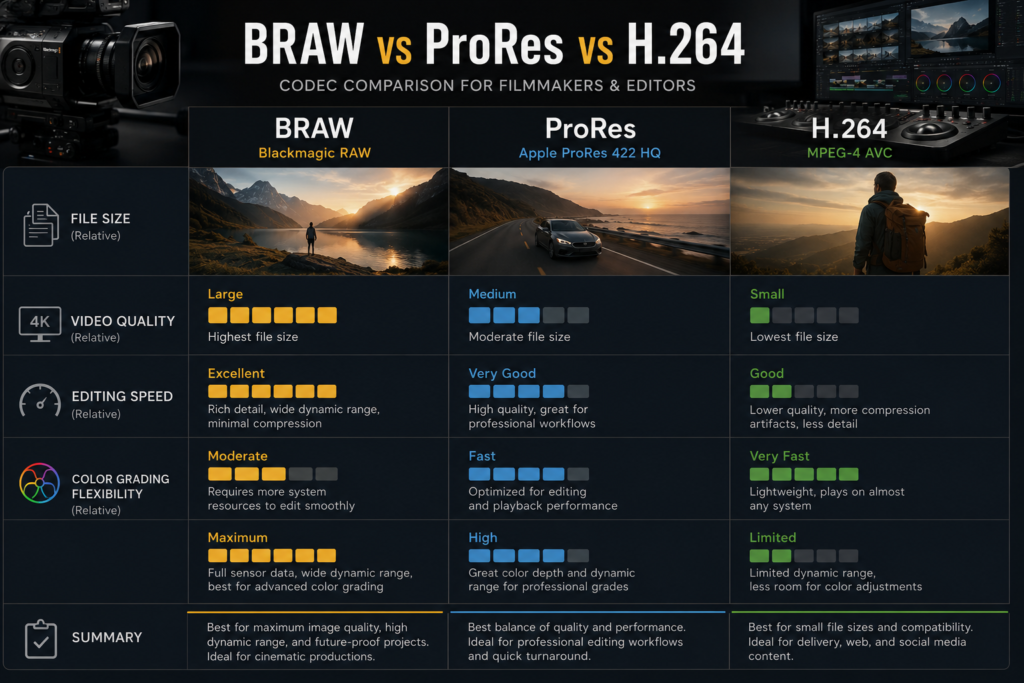
| Feature | BRAW | ProRes | H.264 |
| Quality | Very High | High | Medium |
| File Size | Medium | Large | Small |
| Editing Speed | Fast (GPU-based) | Moderate | Fast |
| Color Grading | Excellent | Good | Limited |
BRAW is popular because it balances quality and editing performance better than many other formats.
- ProRes delivers excellent quality but usually creates larger files.
- H.264 is lightweight and easy to share, but offers limited flexibility for heavy color correction.
- BRAW sits in the middle by preserving strong image quality while still maintaining efficient editing performance.
If you plan to do cinematic color grading, exposure recovery, or professional editing, BRAW provides far more flexibility than compressed formats like H.264.
Is BRAW Good for Editing? (Pros and Cons)
Pros:
- Smooth playback with GPU acceleration
- Excellent flexibility for color grading
- Smaller files compared to traditional RAW
- Better performance in professional workflows
- Non-destructive adjustments during editing
Cons:
- Some editing software has limited support
- A strong GPU is recommended
- Storage requirements can still become large
- Overkill for basic social media edits
For creators working on short films, YouTube productions, commercials, or cinematic projects, BRAW is often a great choice. However, beginners making quick edits may not always need its advanced capabilities.
BRAW GPU Acceleration Explained (Why It’s Faster)
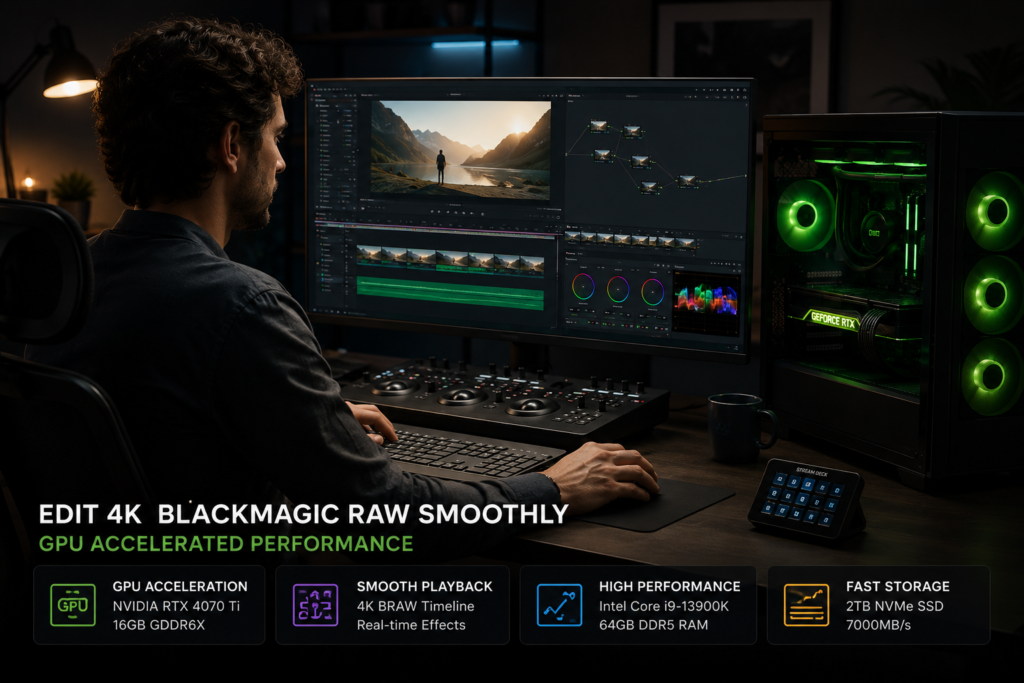
Traditional RAW formats rely heavily on the CPU, which can significantly slow editing performance. BRAW is designed differently by shifting much of the decoding process to the GPU.
This results in:
- Smoother timeline playback
- Faster rendering
- Better real-time editing performance
- Improved handling of high-resolution footage
In practical use, editors often notice that 4K BRAW playback feels surprisingly responsive when paired with a decent graphics card and fast SSD storage.
However, weaker GPUs may struggle with higher resolutions such as 6K or complex timelines filled with effects.
Want smoother BRAW playback and faster rendering performance? Understanding: What Is Hardware-Accelerated GPU Scheduling?
BRAW Editing Workflow (Step-by-Step Guide)
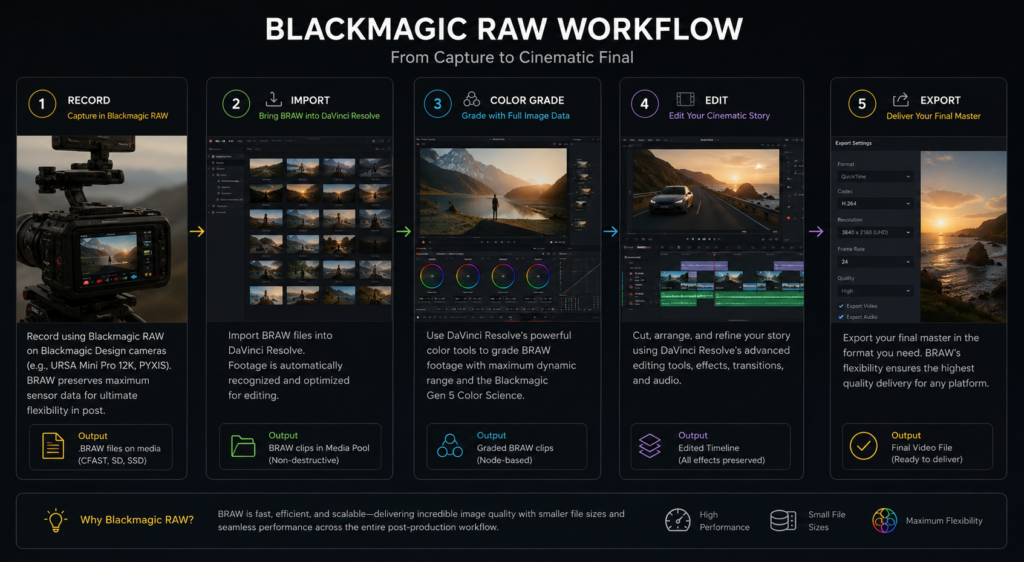
A typical BRAW workflow looks like this:
- Record footage using a compatible Blackmagic camera
- Import files into your editing software
- Adjust ISO, white balance, and exposure if needed
- Apply color grading
- Edit the timeline
- Export the final project
One major advantage of BRAW is that many camera settings remain adjustable after recording. This gives editors more freedom during post-production compared to standard compressed formats.
For example, slight exposure mistakes can often be corrected more naturally in BRAW footage.
Best BRAW Settings (Quality vs Performance)
BRAW includes two primary recording modes:
Constant Quality
- Q0 → Highest quality
- Q5 → Smaller file size
Constant Bitrate
- 3:1 → Maximum quality
- 12:1 → Smaller files
Recommended Settings
- Cinematic productions → Q0 or 3:1
- YouTube videos → Q5 or 8:1
- Faster workflows → Higher compression settings
A common beginner mistake is always recording at maximum quality. In many situations, the visual difference is very small, while storage usage increases dramatically.
Choosing balanced settings usually improves workflow efficiency without noticeable quality loss.
BRAW System Requirements (PC & Laptop Guide)
Minimum Requirements:
- 16GB RAM
- SSD storage
- Entry-level dedicated GPU
Recommended Requirements:
- 32GB RAM
- NVMe SSD
- Dedicated GPU with 6GB+ VRAM
Many editors underestimate how important storage speed is. Slow hard drives often create playback stuttering, even when the CPU and GPU are powerful.
Using SSD or NVMe storage can dramatically improve editing responsiveness.
BRAW Performance (Real-World Expectations)
Performance depends heavily on:
- GPU power
- SSD speed
- Timeline optimization
- Resolution and effects used
On a solid mid-range system:
- 4K playback is usually smooth
- 6K editing may require optimization
- Export times are often competitive with ProRes workflows
Real-world editing performance can vary depending on the complexity of the project. Heavy effects, noise reduction, and multiple video layers will naturally increase hardware demands.
BRAW Problems and Fixes (Quick Guide)
1. Playback Lag:
Fix: Use proxies or reduce timeline resolution.
2. Plugin Issues:
Fix: Install or update the official BRAW plugin.
3. Import Errors:
Fix: Update your editing software to the latest version.
4. Slow Rendering:
Fix: Enable GPU acceleration in software settings.
Many playback issues are caused by slow storage drives or outdated GPU drivers rather than the BRAW format itself.
Best Software for BRAW Editing:
- DaVinci Resolve: Best overall performance and native support
- Adobe Premiere Pro: Works through the BRAW plugin
- Final Cut Pro: Limited compatibility
DaVinci Resolve is generally considered the best option because Blackmagic Design optimized the software specifically for BRAW workflows.
Editors who work heavily with color grading often prefer Resolve because its playback and rendering performance is usually more stable.
Do you want official support details, plugins, and workflow information directly from the developers? Check the official Blackmagic RAW page below.
Who Should Use BRAW?
Best for:
- Filmmakers
- Professional video editors
- YouTubers focused on quality
- Commercial video production
- Color grading workflows
Not ideal for:
- Low-end laptops
- Very simple editing projects
- Quick social media uploads
- Users with limited storage space
Creators who value cinematic image quality usually benefit the most from BRAW.
BRAW for Beginners (Quick Start Tips)
If you are new to BRAW, start simple:
- Use Q5 or 8:1 settings
- Edit on SSD storage
- Begin with 4K projects instead of 6K
- Use DaVinci Resolve for smoother compatibility
- Avoid adding too many heavy effects initially
This setup helps beginners maintain good performance while learning professional workflows.
BRAW for YouTubers vs Filmmakers:
YouTubers:
- Usually prefer balanced file sizes
- Focus on editing speed and consistency
- Often use moderate compression settings
Filmmakers:
- Prioritize image quality
- Use higher-quality recording modes
- Spend more time on cinematic color grading
The ideal settings depend entirely on the type of content being produced.
Best GPU for BRAW Editing (2026 Guide)
For smooth BRAW editing, look for:
- At least 6GB VRAM
- Strong GPU acceleration support
- Modern NVIDIA or AMD graphics cards
Mid-range GPUs are often enough for 4K editing, while high-end GPUs provide smoother performance for 6K workflows and advanced effects.
For example, many editors report solid 4K performance using GPUs like the RTX 3060 or RX 6700 XT.
Not sure whether your graphics card is powerful enough for 4K or 6K BRAW editing? These GPU guides can help you understand performance limits. What Does GPU Bound Mean?
BRAW Storage Requirements:
Approximate storage usage:
- 4K (1 hour) 50GB to 150GB
- 6K (1 hour) 100GB to 300GB
Recommended storage setup:
- NVMe SSD for active projects
- SSD for editing cache
- External backup drive for archived footage
Professional workflows can consume storage quickly, especially during long shoots.
Common BRAW Mistakes (And How to Avoid Them)
- Using slow HDD storage instead of SSD
- Recording at unnecessarily high quality settings
- Ignoring GPU limitations
- Forgetting to optimize timeline settings
- Editing high-resolution footage on weak systems
Small workflow improvements can make BRAW editing significantly smoother
FAQ’s:
Is BRAW better than ProRes?
BRAW usually provides better flexibility for color grading and exposure adjustments, while also maintaining efficient editing performance.
Does BRAW require a powerful computer?
A decent GPU and SSD storage are highly recommended for smooth playback and faster rendering.
Can beginners use BRAW?
Yes, Beginners can start with lower compression settings and simpler workflows to avoid performance problems.
What software supports BRAW editing?
DaVinci Resolve offers the best native support, while Adobe Premiere Pro supports BRAW using an official plugin.
Why is BRAW faster than traditional RAW formats?
Because part of the image processing happens inside the camera, while the GPU handles much of the remaining workload during editing.
Conclusion:
Blackmagic RAW (BRAW) is a modern video format designed to deliver cinematic image quality without creating the extremely heavy workflows often associated with traditional RAW formats. It offers better flexibility for color grading, smoother editing performance, and efficient file management for professional creators.
Whether you are a filmmaker, YouTuber, or video editor, BRAW can help improve post-production flexibility while maintaining strong image quality. With the right hardware and workflow setup, it becomes a powerful option for modern video production.