
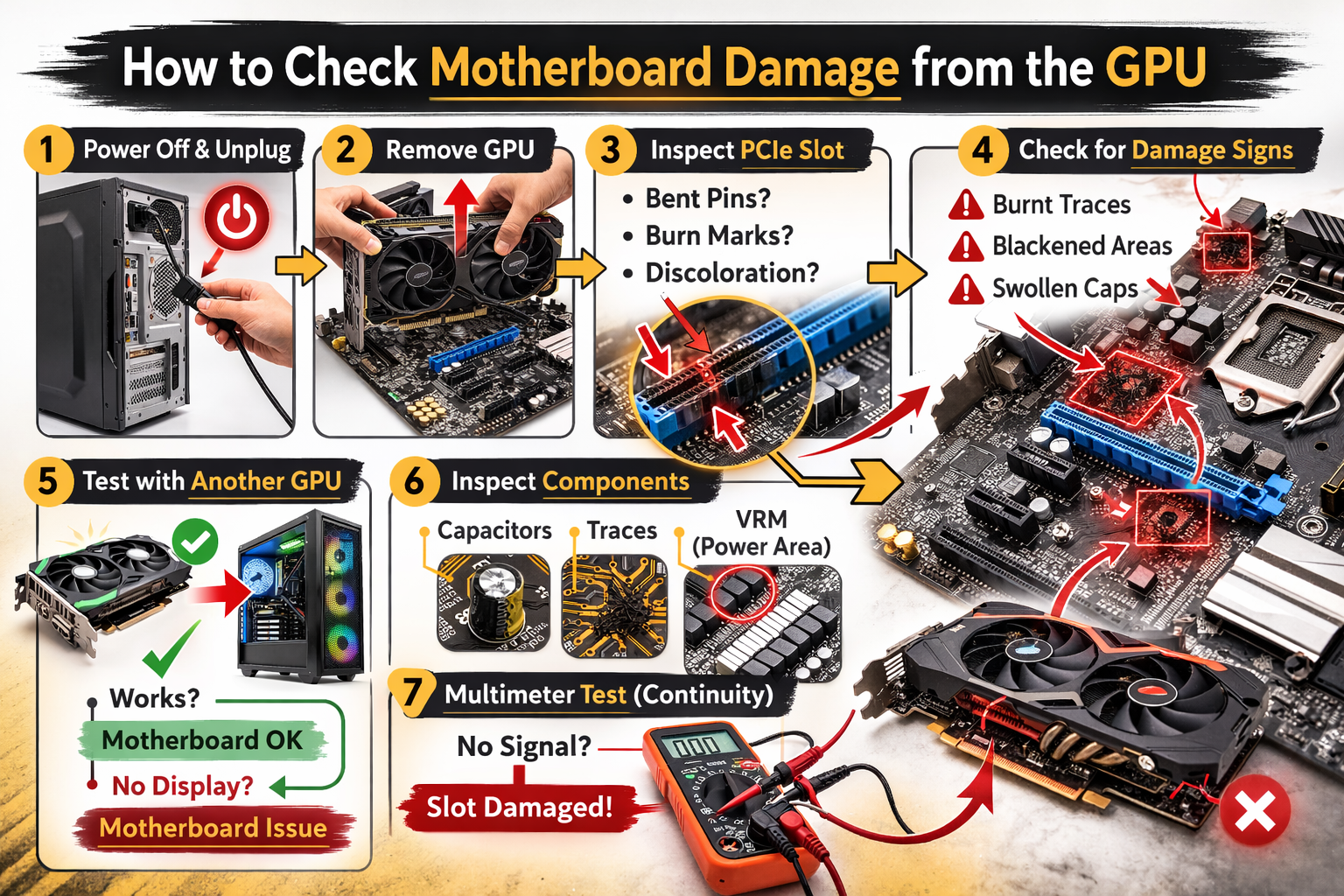
To check for motherboard damage caused by the GPU, remove the graphics card and inspect the PCIe slot for burn marks, melted plastic, or bent pins. Test the system using integrated graphics. If the PC still shows no display, random shutdowns, or debug LED errors, the motherboard may be damaged.
In this guide, you will learn the key warning signs, step-by-step inspection methods, and simple diagnostic tests to determine whether your motherboard has been affected by GPU-related issues.
How Do You Know If Your GPU Is Bad?
How to Check Motherboard Damage from the GPU. A failing GPU usually shows problems under heavy load. In real-world repair situations, graphics cards often crash during gaming, rendering, or stress testing because power draw increases significantly at those times.
Also Read: Is Autocad Cpu Or Gpu Intensive?
Common GPU Failure Signs
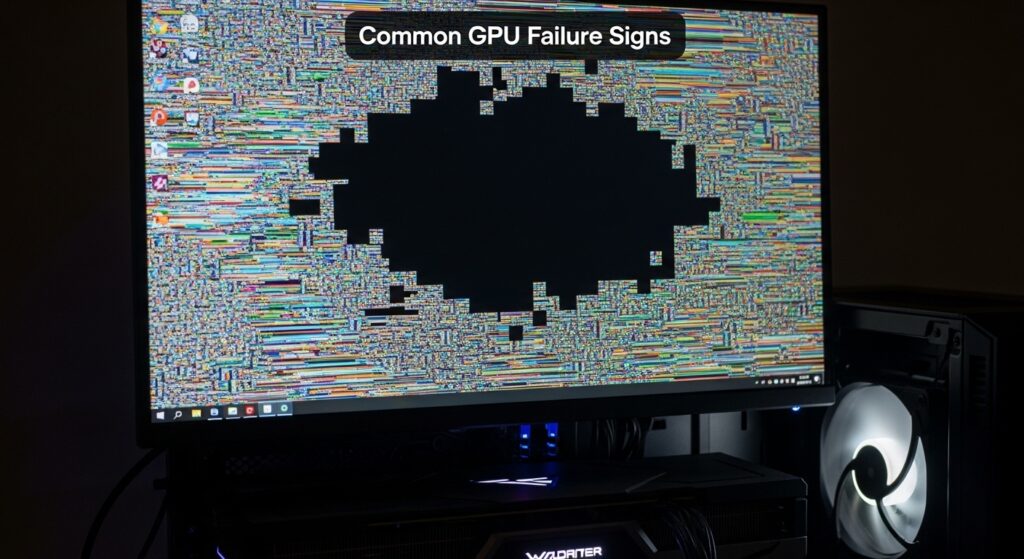
If you repeatedly notice the following problems, your graphics card may be faulty:
- Screen artifacts (colored lines, flickering, pixel blocks)
- PC crashes while gaming
- Black screen during heavy load
- GPU fans spin, but there is no display output
- Burning smell near the graphics card
- Driver crashes, or Display driver stopped responding errors
- Sudden frame drops before shutdown
If these issues continue even after reinstalling drivers and checking cables, hardware failure becomes more likely than a software issue.
Why Is Your PC Turning On but Showing No Display?
This is one of the most confusing PC problems. The system powers on, fans spin, RGB lights work, but the monitor remains completely black.
The issue can be related to:
- GPU failure
- Motherboard PCIe slot damage
- RAM not seated properly
- PSU nis ot supplying a stable voltage
- BIOS graphics configuration error
- Loose CPU power connector
Quick Checks You Should Try First:
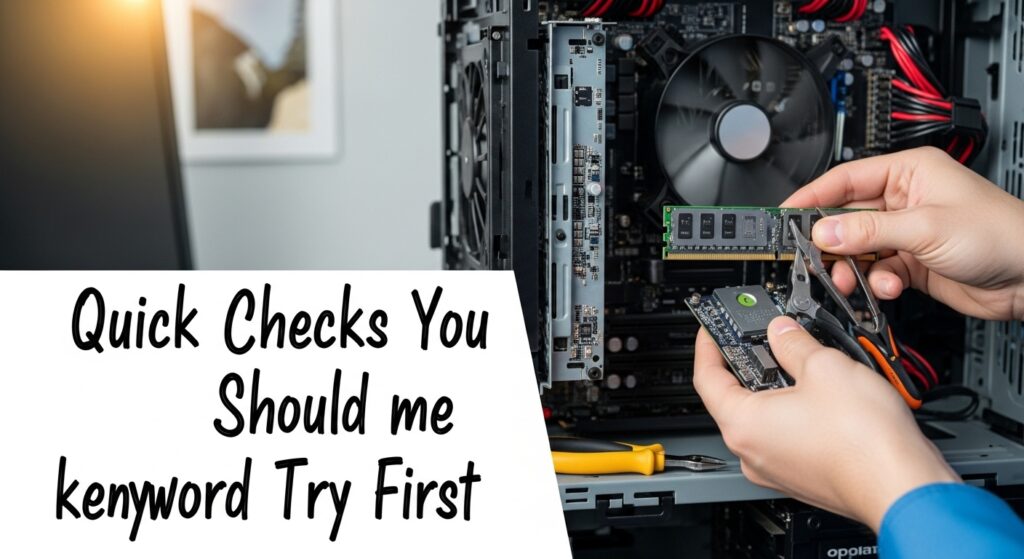
Before assuming motherboard damage, try these basic troubleshooting steps:
- Confirm the monitor input source
- Reseat RAM modules
- Reseat the GPU properly
- Try another HDMI or DisplayPort cable
- Test with a different monitor
- Clear CMOS
- Disconnect unnecessary peripherals
If the issue remains after these checks, deeper hardware diagnostics are required.
Is the Motherboard or GPU Causing the Issue?
Many users replace the wrong component because they guess instead of comparing system behavior patterns.
Here is a clearer comparison to help you diagnose correctly:
| Symptom | Likely GPU Issue | Likely Motherboard Issue |
| Screen artifacts | Yes | Rare |
| No power to USB ports | No | Yes |
| No POST beeps | Sometimes | Yes |
| The GPU works in another PC | No | Yes |
| Debug LED on VGA | Yes | Maybe |
| The system shuts off instantly | Sometimes | Yes |
| Burning smell near PCIe | Rare | Yes |
If your GPU works perfectly in another computer but fails in yours, your motherboard’s PCIe slot, VRM section, or power delivery system is likely damaged.
Can a Bad PSU Damage Your GPU?
Yes. A low-quality or failing power supply unit (PSU) can damage both the GPU and motherboard.
Unstable voltage can cause:
- VRM overheating
- Power phase stress
- Short circuits
- Permanent PCB damage
- Capacitor failure
Warning Signs of PSU Problems:
- Random shutdowns under load
- System restarts while gaming
- Burning smell from PSU
- Coil whining noise
- Voltage fluctuations in BIOS
- The PU is crashing only during stress
If your PSU is old or low quality, replace it before installing a new GPU to prevent repeated hardware damage.
How Can You Test a GPU Without Another PC?
If you do not have access to another computer, you can still perform internal diagnostics safely.
Simple Internal Testing Steps
- Boot into BIOS and check display stability
- Switch to integrated graphics (if supported)
- Run a stress test tool like FurMark
- Monitor temperature and power draw
- Check the Windows Event Viewer for display errors
If the system crashes quickly during a stress test or shows visual artifacts, the GPU may be unstable or overheating.
How Do You Check If the PCIe Slot Is Working?
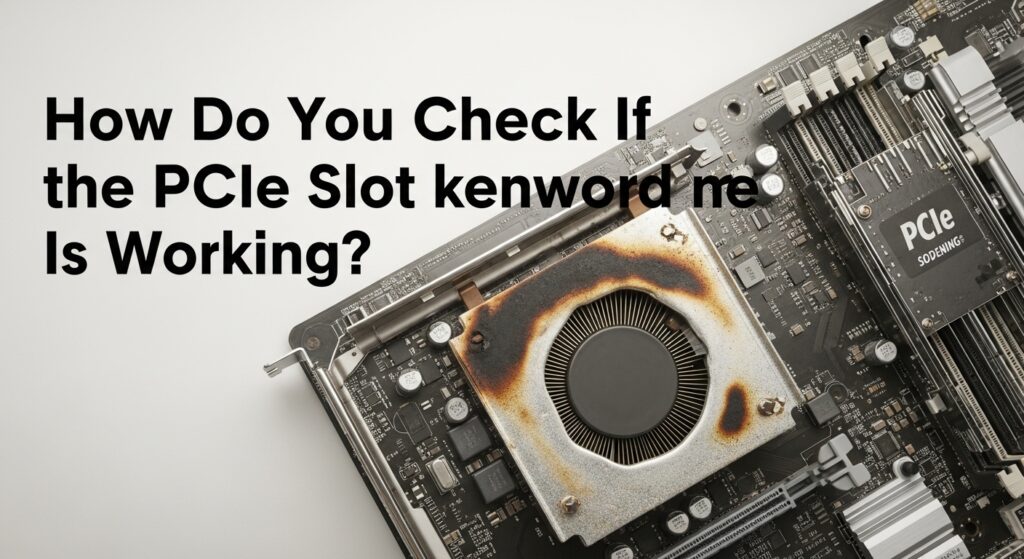
Sometimes the GPU is fine, but the PCIe slot itself is damaged.
This can happen due to:
- Power surges
- Incorrect GPU installation
- Excessive physical pressure
- Electrical short circuit
- Metal debris inside the slot
Fast Slot Testing Method:
- Move the GPU to another PCIe slot (if available)
- Inspect the slot for bent pins or dust
- Look for burn marks or melted plastic
- Test with a known working GPU
If another working GPU also fails in the same slot, the motherboard is very likely damaged.
What Do Motherboard Beep Codes Mean?
Beep codes help identify hardware failure during POST (Power-On Self-Test).
| Beep Pattern | Meaning |
| 1 short beep | Normal boot |
| 1 long 2 short | GPU error |
| Continuous beeps | RAM issue |
| No beep | Possible motherboard failure |
Always check your motherboard manual because beep codes can vary by manufacturer.
How Do You Reset CMOS to Fix No Display?
Resetting CMOS restores BIOS settings to default, which can fix incorrect graphics or PCIe configuration.
Steps:
- Turn off the PC completely
- Remove the power cable
- Remove the CMOS battery for 5 to 10 minutes
- Reinstall the battery and boot the system
This simple reset can resolve BIOS misconfiguration, PCIe detection issues, or corrupted profiles.
Why Is Your GPU Detected but Not Displaying Output?
If Windows detects the GPU but there is still no display, possible causes include:
- Corrupt drivers
- Wrong primary display selected
- BIOS set to integrated graphics
- Damaged DisplayPort
- Firmware compatibility issue
- Outdated GPU BIOS
Use Safe Mode to completely uninstall drivers before installing the latest stable version.
What Are the Signs of VRM or Power Damage?
VRM (Voltage Regulation Module) damage is serious and often permanent.
Signs include:
- Burn marks near the CPU or PCIe power area
- The system shuts down instantly under load
- GPU not receiving stable power
- Strong burnt electronics smell
- Bulging or leaking capacitors
If visible physical damage exists, motherboard replacement is usually safer than repair.
How Can You Safely Stress-Test a GPU?
Stress testing confirms GPU stability and power delivery performance.
- Run the test for 10 to 15 minutes
- Monitor temperature (keep below 85–90°C)
- Watch for artifacts or flickering
- Stop immediately if the system crashes
- Do not leave the PC unattended
Overheating during stress testing usually indicates cooling issues or unstable power delivery.
Why Does HDMI Work but DisplayPort Does not?
If HDMI works but DisplayPort does not, possible causes include:
- Faulty DisplayPort cable
- Damaged DisplayPort connector
- Driver compatibility issue
- Monitor firmware bug
- Loose GPU port solder
Always test with a new cable and update GPU drivers before assuming hardware failure.
Should You Repair or Replace a Dead GPU?
Modern GPUs are complex and expensive to repair.
Repair is only worth considering if:
- Damage is minor
- VRAM chips are intact
- PCB traces are not burnt
- The repair cost is under 50% of the replacement cost
In most cases, replacement is the safer and more reliable option.
Additional Safety Tip: Preventing GPU and Motherboard Damage:
To prevent future hardware damage:
- Use a high-quality PSU with proper wattage
- Install a surge protector
- Ensure proper airflow inside the case
- Avoid forcing the GPU into the PCIe slot
- Clean dust regularly
- Do not overload power strips
Preventive maintenance reduces the risk of short circuits and power-related motherboard failure.
Use a high‑quality PSU with proper wattage, install a surge protector, ensure proper airflow inside the case, and learn how to choose the right power supply unit for your PC for maximum protection
FAQ’s:
Can a GPU damage a motherboard?
Yes, A faulty GPU or power surge can short the PCIe slot and damage the motherboard’s power circuitry.
Will a damaged motherboard still power on?
Yes, the fans and lights may turn on, but the system may fail to POST or show no display
Can a bad PCIe slot cause no display?
Yes, if the PCIe slot is damaged or not delivering power properly, the GPU will not output video.
How do I confirm if the GPU damaged my motherboard?
Test the GPU in another PC and use integrated graphics on your system; if the GPU works elsewhere but your PC still fails, the motherboard is likely damaged.
What are the main signs of motherboard damage from a GPU?
Common signs include burnt PCIe slot marks, debug LED errors, system shutdown under load, and no display even after removing the GPU.
Conclusion:
Checking motherboard damage from the GPU requires systematic testing rather than guessing. Start with simple troubleshooting steps such as reseating components and testing cables. Then move to stress testing, PCIe slot inspection, and PSU verification.
If the GPU works in another PC, your motherboard is likely the issue. If crashes and artifacts appear under load, the GPU is usually at fault.
Proper diagnosis saves money, prevents repeated hardware damage, and ensures you replace the correct component with confidence.