
Introduction:
Knowing how to check CPU power consumption is useful when your PC runs hot, your electricity bill feels high, your laptop battery drains quickly, or you want to buy the right power supply. Many users look at CPU usage in Task Manager and think it tells the full power story, but CPU usage and CPU wattage are not the same thing.
Your CPU can use different amounts of power depending on workload, clock speed, voltage, cooling, power limits, and background tasks. A gaming PC may draw far more power than an office computer, while a workstation running rendering software can remain at high power levels for hours.
The good news is that you do not need to guess. You can check CPU power consumption with software tools, hardware power meters, BIOS settings, Linux commands, and real-time monitoring apps. Each method has a different purpose. Some methods show CPU-only wattage, while others show total PC power consumption from the wall.
This guide explains the best ways to measure CPU power, total PC power draw, electricity costs, PSU requirements, UPS sizing, and common mistakes beginners should avoid.
Best Ways to Check CPU and PC Power Consumption:
The best way to check CPU power consumption is to use a reliable hardware monitoring tool such as HWiNFO, HWMonitor, Open Hardware Monitor, Intel XTU, or AMD Ryzen Master. Look for readings such as CPU Package Power, CPU PPT, or CPU Power.
For total PC power consumption, use a wall power meter, smart plug power meter, or UPS display. These tools measure how much electricity the whole system pulls from the outlet.
| Your Goal | Best Method | What It Shows |
| Check CPU-only power | HWiNFO, HWMonitor, Ryzen Master, Intel XTU | CPU package wattage |
| Check the total PC power | Wall power meter or smart plug | Whole PC power draw |
| Check gaming power usage | MSI Afterburner with overlay | Live CPU, GPU, FPS, temperature |
| Estimate electricity cost | Watt meter + kWh formula | Daily or monthly cost |
| Choose a PSU | Wall meter + PSU calculator | Recommended power supply size |
| Size a UPS | Total PC wattage under load | Backup runtime estimate |
If you want the most accurate real-world number, measure your PC against the wall. If you want to understand only the processor’s behaviour, use software monitoring.
CPU Power Consumption vs Total PC Power Usage: What Is the Difference?
CPU power consumption means the amount of electrical power your processor uses. It is usually shown in watts. This number changes constantly because the CPU adjusts its speed and voltage based on workload.
Total PC power usage is different. It includes the CPU, GPU, motherboard, RAM, storage drives, cooling fans, RGB lights, USB devices, and power supply efficiency loss.
Wondering how much power your graphics card adds to the total system draw? You must read: How Many Watts Does a GPU Use?
That is why your CPU may show 80 watts in software, but your PC may pull 250 watts or more from the wall during gaming.
This difference is important because many people mistake CPU wattage for the computer’s total wattage. If you are checking heat or CPU performance, CPU package power is useful. If you are buying a UPS, power station, or PSU, total PC power draw matters more.
What Is CPU Package Power?
CPU Package Power is the total power used by the processor package. It usually includes CPU cores and other parts inside the processor package, depending on the CPU design and sensor support.
In many monitoring tools, CPU Package Power is the most useful reading for checking CPU power consumption. It gives a live estimate of how many watts your CPU is using at that moment.
You may also see similar labels such as:
- CPU Power
- Package Power
- CPU PPT
- Core Power
- IA Cores Power
- SoC Power
- APU Power
The exact name depends on your CPU, motherboard, and monitoring software.
What Is Wall Power Draw?
Wall power draw means the power your entire PC pulls from the electrical outlet. This is measured with a hardware device such as a Kill-A-Watt meter, smart plug power meter, or UPS display.
Wall power is usually higher than software CPU power because it includes every component in your computer. It also includes a loss of power supply efficiency. For example, if your PC components need 400 watts and your PSU is not 100% efficient, the wall meter may show a higher number.
Wall power draw is the best number for calculating electricity cost, UPS runtime, power station backup, and total system efficiency.
Why Software Readings and Wall Meter Readings Are Different
Software readings come from internal sensors. They are useful, but they do not always show the full picture. A CPU power reading does not include your monitor, GPU, speakers, router, printer, or other devices connected to the same outlet.
A wall meter measures real power draw from the outlet. It sees the full system load, including PSU losses. That makes it more practical for electricity cost and backup power planning.
In simple words:
- Software tools are best for CPU behaviour.
- Wall meters are best for full PC electricity usage.
- Both together give the most complete picture.
CPU Power vs Total PC Power:
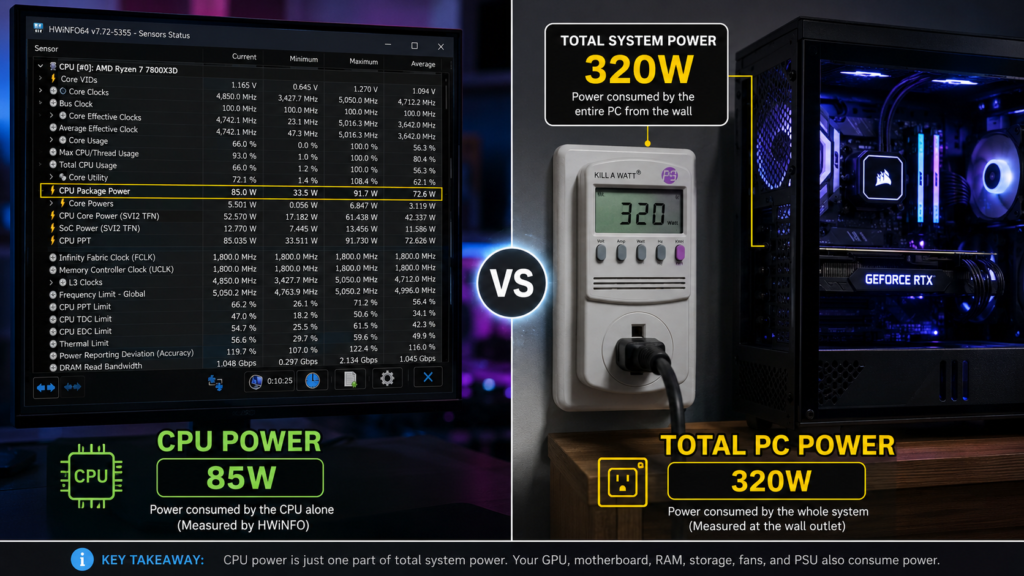
Suppose you are playing a modern game on a desktop PC. HWiNFO shows your CPU Package Power at 85W. At the same time, a wall power meter shows the entire PC drawing 320W from the outlet.
The difference happens because the CPU is only one part of the system. The graphics card, motherboard, RAM, storage drives, cooling fans, RGB lighting, and power supply all add to the total power draw.
This is why a CPU power reading is useful for monitoring processor behaviour, while a wall meter is better for calculating electricity cost, UPS sizing, and total system power usage.
What Is Normal CPU Power Consumption?
Normal CPU power consumption varies based on the processor model, workload, cooling system, and power settings. A laptop used for web browsing may consume only a few watts, while a high-performance desktop CPU can use more than 200 watts during demanding tasks.
Instead of focusing on a single normal number, it is more useful to compare your CPU’s power usage during idle, gaming, and full-load conditions. This gives a clearer picture of whether your system is operating as expected.
| PC Type | Idle CPU Power | Gaming / Medium Load | Heavy Load |
| Thin laptop | 2W to 10W | 10W to 35W | 25W to 60W |
| Office desktop | 5W to 25W | 30W to 70W | 60W to 120W |
| Gaming desktop | 10W to 40W | 50W to 150W | 100W to 250W+ |
| Workstation | 20W to 60W | 100W to 250W | 200W to 350W+ |
These are general examples, not fixed rules. CPU generation, cooling, BIOS settings, motherboard limits, and workload can change the result.
Normal CPU Power Usage at Idle:
At idle, your CPU should usually use very little power. On a modern laptop, the CPU may drop to a few watts when no heavy app is running. On a desktop, idle CPU power can be higher because desktop chips have larger power budgets, and the system may run more background tasks.
If your CPU stays at high wattage while idle, check for browser tabs, game launchers, malware scans, Windows updates, cloud syncing, or background recording apps.
Normal CPU Power Usage While Gaming
During gaming, CPU power depends on the game. Some games are GPU-heavy, so the graphics card does most of the work. Other games are CPU-heavy, especially simulation games, strategy games, esports titles, and open-world games with many NPCs.
A gaming CPU may draw 50-150W during Gameplay, while the GPU may draw much more. That is why total PC power usage during gaming is often far higher than CPU-only power.
Not sure whether your CPU or GPU is doing most of the work while gaming? Read Now: Is Minecraft CPU or GPU-Intensive?
Normal CPU Power Usage Under Full Load:
Full-load CPU power appears during rendering, compiling code, stress testing, video encoding, scientific work, and heavy multitasking. In this condition, the CPU may remain near its power limit for longer.
If temperatures are too high, the CPU may reduce clock speed to protect itself. This is called thermal throttling. Good cooling helps the CPU maintain stable performance without wasting extra power.
Desktop CPU vs Laptop CPU Power Consumption:
Laptop CPUs are designed for battery life and heat control. They usually have lower sustained power limits than desktop CPUs. Desktop CPUs can use more power because they have larger coolers, stronger power delivery, and more airflow.
This is why two CPUs with similar names may behave differently in real life. A laptop chip may briefly boost power, then reduce it. A desktop chip may hold higher wattage for longer.
Best Tools to Check CPU Power Consumption on Windows:
Windows does not give a perfect built-in CPU wattage meter. Task Manager can show power usage labels for apps, but it does not show exact CPU package wattage. For accurate CPU power monitoring, use dedicated tools.
HWiNFO: Best Tool for Detailed CPU Package Power:
HWiNFO is one of the best tools for advanced users because it shows detailed sensor data. You can monitor CPU package power, CPU temperature, voltage, clock speed, thermal throttling, and many motherboard readings.
To use it:
- Open HWiNFO.
- Choose Sensors-only Mode.
- Find your CPU section.
- Look for CPU Package Power, CPU PPT, or similar readings.
- Watch the current, minimum, maximum, and average values.
HWiNFO is especially useful when comparing idle, gaming, and stress-test numbers.
HWMonitor: Simple Tool for Beginners:
HWMonitor is easier for beginners because it has a simple layout. It can show temperatures, voltages, fan speeds, and power readings when supported by your hardware.
Use HWMonitor if you want a quick look at CPU power without advanced setup. Open the tool, expand the CPU section, and check the power category.
If your CPU power reading does not appear, it may be due to limited sensor support from your CPU, motherboard, laptop firmware, or software version.
Open Hardware Monitor: Free Lightweight Option:
Open Hardware Monitor is a free and lightweight tool that can show temperatures, voltages, fan speeds, clock speeds, and system load. It is helpful for users seeking a simple, open-source monitoring option.
However, its power readings may not be available on every system. If you do not see CPU wattage, try HWiNFO, HWMonitor, Intel XTU, or AMD Ryzen Master.
MSI Afterburner: Best for Gaming Power Monitoring:
MSI Afterburner is popular among gamers because it can display live performance data on-screen while playing. With RivaTuner Statistics Server, you can create an overlay that displays CPU temperature, CPU usage, GPU usage, GPU power, FPS, and other stats.
For CPU power, MSI Afterburner may need sensor data from supported hardware or plugin support. It is excellent for gaming overlays, but HWiNFO is usually better for deeper CPU power readings.
Intel XTU: Best for Intel CPU Power Limits:
Intel Extreme Tuning Utility is useful for Intel CPUs. It can help monitor CPU power, temperature, throttling, and performance limits. It is especially helpful when you want to understand power limits such as PL1 and PL2.
Use Intel XTU carefully. Do not change voltage or power settings unless you understand the risk. For basic monitoring, you only need to observe the readings.
AMD Ryzen Master: Best for AMD Ryzen CPU Power Usage:
AMD Ryzen Master is useful for AMD Ryzen processors. It can show important readings such as temperature, clock speed, voltage, PPT, TDC, and EDC.
For AMD users, PPT is often one of the key values to watch because it relates to socket power tracking. Ryzen Master is also useful for Eco Mode, undervolting, and performance tuning, but beginners should avoid changing advanced settings without research.
How to Check CPU Power Consumption in Windows 10 and Windows 11
The easiest way to check CPU power consumption in Windows is to use a third-party monitoring tool.
Step 1: Install a Reliable Monitoring Tool:
Choose one tool based on your needs:
- HWiNFO for detailed monitoring
- HWMonitor for simple monitoring
- Ryzen Master for AMD CPUs
- Intel XTU for Intel CPUs
- MSI Afterburner for gaming overlays
Always download software from official sources. Avoid random mirror websites because monitoring tools require system-level access, and unsafe downloads can create security problems.
Step 2: Find CPU Package Power or CPU PPT:
After opening the tool, search for these readings:
- CPU Package Power
- Package Power
- CPU PPT
- CPU Power
- Core Power
- IA Cores Power
If you use an AMD Ryzen CPU, PPT may be very useful. If you use an Intel CPU, CPU Package Power is often the clearest reading.
Step 3: Check Idle, Gaming, and Full Load Readings:
Do not measure only one number. Test three situations:
- Idle: Close heavy apps and wait a few minutes.
- Normal use: Browse, stream, or work as usual.
- Heavy load: Play a game, render a video, or run a benchmark.
This gives you a real picture of how your CPU behaves.
Step 4: Save or Compare Your Results:
Write down the average and maximum wattage. The average number is useful for electricity cost, while the maximum number helps with cooling and PSU planning.
A simple format works well:
| Test Condition | CPU Power | CPU Temperature | Notes |
| Idle | 8W | 38°C | Browser closed |
| Gaming | 95W | 72°C | 1440p gaming |
| Stress test | 145W | 86°C | 10 minute test |
How to Check CPU Power Consumption While Gaming
Gaming power usage changes quickly. CPU power may rise during loading screens, multiplayer battles, large maps, or high-FPS scenes. That is why real-time monitoring is helpful.
Best Overlay Tools for Live CPU Wattage:
For gaming, use an overlay tool to see readings while playing. Good options include:
- MSI Afterburner
- RivaTuner Statistics Server
- HWiNFO sensor overlay
- AMD Adrenalin metrics
- NVIDIA overlay for GPU-related stats
A good gaming overlay should show CPU temperature, CPU usage, GPU usage, FPS, RAM usage, and power, where available.
How to Monitor CPU Power, GPU Power, FPS, and Temperature Together
CPU power alone does not explain gaming performance. You should also check GPU power and usage. If your GPU is at 95% to 100% usage, the game is likely GPU-limited. If your CPU is heavily loaded and the GPU is not fully used, you may have a CPU bottleneck.
For a useful gaming test, track:
- CPU Package Power
- CPU temperature
- GPU power
- GPU temperature
- GPU usage
- FPS
- Frame time
- RAM usage
This helps you determine whether high power consumption is normal or due to poor optimization.
Want a cleaner gaming overlay without distracting performance stats? Also Read: How to Turn Off FPS, GPU, CPU & Latency Overlay?
Why CPU Power Changes During Gaming:
CPU power changes because games do not load the processor evenly all the time. Some moments need more physics, AI, background asset streaming, or draw calls. Other moments rely more on the GPU.
Higher FPS can also increase CPU power. For example, running a game at 240 FPS may make the CPU work harder than running it at 60 FPS.
How to Test CPU Power Consumption Under Full Load
A full-load test shows how much power your CPU can use when pushed hard. This is useful for cooling checks, stability testing, and power limit analysis.
Using Cinebench for Real-World CPU Load:
Cinebench is a good practical benchmark because it creates a heavy rendering workload. It is useful for testing CPU power under a realistic all-core load.
Run the test and watch CPU Package Power, CPU temperature, and clock speed. If power stays high but clock speed drops, your CPU may be thermal throttling.
Using Prime95 for Maximum CPU Stress Testing:
Prime95 can create a very heavy CPU workload. It may push your processor harder than it does during normal daily use. This makes it useful for stress testing, but it can also create high heat.
Use it carefully. Watch temperatures closely and stop the test if the CPU gets too hot or the system becomes unstable.
Using OCCT for Power, Temperature, and Stability Testing:
OCCT is another useful tool for checking system stability, CPU power, temperature, and errors. It can help identify power or cooling problems.
For beginners, a short test is usually enough. You do not need to run long stress tests unless you are diagnosing a serious stability issue.
Safe Temperature and Wattage Limits During Stress Tests:
Safe temperatures depend on the CPU model. Many modern CPUs are designed to run hot under load, but lower temperatures are usually better for noise, comfort, and long-term stability.
If your CPU quickly reaches a very high temperature, check:
- CPU cooler installation
- Thermal paste
- Case airflow
- Fan curves
- Dust buildup
- BIOS power limits
- Background apps
High wattage isn’t inherently bad, but high wattage combined with poor cooling can cause throttling.
How to Measure Total PC Power Consumption from the Wall
If you want the most accurate total PC power usage, measure from the wall. This is the best method for estimating electricity costs, sizing UPS systems, and planning power stations.
Using a Kill-A-Watt Meter
A Kill-A-Watt-style meter plugs into the wall outlet. You plug your PC into the meter, and the display shows power draw in watts.
Basic method:
- Plug the meter into the wall.
- Plug your PC into the meter.
- Start the PC.
- Check idle wattage.
- Run your normal workload.
- Check load wattage.
- Record average and peak numbers.
This method measures the entire PC, not just the CPU.
Using a Smart Plug Power Meter:
A smart plug with energy monitoring can show power usage through a mobile app. Some smart plugs also track daily or monthly energy use.
This is useful if you want to know how much electricity your PC uses over time. Make sure the smart plug supports your PC’s power draw and is rated for your local electrical system.
Using a UPS Display:
Some UPS units show load percentage or wattage. This can help you estimate total PC power draw and backup runtime.
However, not every UPS display is highly precise. For general planning, it is useful. For exact measurement, a dedicated wall meter is better.
Using a Clamp Meter Safely:
A clamp meter can measure electrical current, but it is not the easiest method for beginners. It may require access to a single live conductor and proper electrical knowledge.
Do not open your power supply or wall wiring to measure PC power. If you are not trained in electrical work, use a wall plug meter instead.
Software Monitoring vs Hardware Power Meter: Which Is More Accurate?
Both methods are useful, but they answer different questions.
| Method | Best For | Weakness |
| Software monitoring | CPU-only power and sensor behavior | Does not show full PC draw |
| Wall power meter | Total real-world electricity usage | Does not separate CPU and GPU |
| UPS display | Backup planning | May be less precise |
| Smart plug | Long-term energy tracking | Quality varies by model |
When Software Readings Are Enough:
Software readings are enough to check CPU behavior, compare undervolting results, monitor gaming power, or diagnose thermal throttling.
For example, if your CPU uses 140W during a stress test and reaches high temperatures, software readings help you understand cooling performance.
When You Need a Wall Power Meter:
You need a wall meter when you want to calculate electricity cost, choose a UPS, estimate power station runtime, or understand total PC power usage.
A wall meter is also useful if you suspect your PC is using more energy than expected.
Best Method for Gamers, Office Users, and PC Builders:
Gamers should use both software and a wall meter. Software shows CPU and GPU behavior, while the wall meter shows total system draw.
Office users can use a smart plug or wall meter to estimate electricity cost.
PC builders should measure the full system load before choosing a UPS or power station.
How to Check PC Power Consumption on Linux
Linux users have several options for checking power behavior. The best method depends on whether you want CPU package data, battery drain, or full system estimates.
Using PowerTOP:
PowerTOP is useful for diagnosing power consumption and identifying processes or devices that frequently wake the CPU. It is especially helpful for laptops because it can suggest power-saving improvements.
PowerTOP can estimate system- and process-level power usage, but its readings may require calibration and may not be accurate on every machine.
Using lm-sensors:
lm-sensors can show temperatures, voltages, and fan speeds on many Linux systems. Depending on hardware support, it may also expose power-related readings.
Use this command to install or configure sensors depending on your Linux distribution:
sudo sensors-detect
sensors
The exact output depends on your motherboard and CPU support.
Using Intel RAPL:
Intel RAPL allows some Linux systems to read CPU energy data through powercap interfaces. Advanced users can use it to measure CPU package energy over time.
This is useful for developers, researchers, and server administrators who need CPU-level energy data.
Using Command Line Tools for Real-Time Monitoring:
Linux users can also combine command-line tools with scripts to track power, temperature, and frequency. Useful tools may include:
- PowerTOP
- sensors
- turbostat
- s-tui
- psensor
- powercap readings
For beginners, PowerTOP and sensors are usually the easiest starting points.
How to Check CPU Power Consumption on macOS
macOS does not expose CPU wattage as openly as many Windows and Linux systems. Apple’s hardware and software are tightly integrated, so power readings may be limited.
What Can and Cannot macOS Show?
macOS can show battery usage, energy impact, and process activity through Activity Monitor. However, it does not always show the exact CPU package power in watts.
Activity Monitor helps identify apps that drain energy, but it is not a direct CPU wattage meter.
Best Ways to Estimate Mac Power Usage:
For a MacBook, check battery drain, Activity Monitor energy impact, and system performance during your workload. For better accuracy, use an external power meter at the wall.
For desktop Macs, a wall power meter is usually the most practical way to check total power consumption.
When to Use an External Power Meter for Mac:
Use an external power meter if you want to know:
- Total Mac power draw
- Electricity cost
- Power station runtime
- UPS size
- Power usage during rendering or editing
This is the simplest and most reliable option for total power measurement.
Intel vs AMD CPU Power Terms Explained:
Intel and AMD use different power terms. Understanding these labels helps you read monitoring tools correctly.
Intel PL1 and PL2 Power Limits:
On Intel CPUs, PL1 usually refers to a longer-term power limit, while PL2 refers to a higher short-term boost power limit. These values affect how long the CPU can boost and how much power it can use under heavy load.
Motherboard settings can change these limits. That is why the same Intel CPU may behave differently on two different motherboards.
AMD PPT, TDC, and EDC:
On AMD Ryzen systems, you may see PPT, TDC, and EDC.
- PPT relates to package power tracking.
- TDC relates to the sustained current limit.
- EDC relates to the peak current limit.
These values help control boost behavior, thermals, and power delivery.
TDP vs Real Power Consumption:
TDP is often misunderstood. It is not always the exact power your CPU will use every second. Real power consumption can be lower or higher depending on workload, boost behavior, cooling, and motherboard settings.
This is why checking live CPU power consumption is more useful than relying only on TDP.
Intel explains that TDP is not always equal to real-world power consumption because actual power usage depends on workload and boost behavior.
Boost Clocks and Power Spikes:
Modern CPUs boost aggressively when thermal and power limits allow it. This can create short power spikes. A CPU may use low power at idle, then jump quickly during app launches, game loading, or rendering.
Short spikes are normal. Sustained high power at high temperatures requires closer attention.
How to Calculate Electricity Cost from PC Power Consumption
To calculate electricity costs, you need the power in watts, usage time, and your electricity rate.
PC Wattage to kWh Formula:
Use this formula:
kWh = watts × hours used ÷ 1000
Then calculate the cost:
Cost = kWh × electricity rate
For example, if your PC uses 300 watts for 5 hours:
300 × 5 ÷ 1000 = 1.5 kWh
If electricity costs $0.20 per kWh:
1.5 × 0.20 = $0.30 per day
Example: How Much Electricity Does a Gaming PC Use?
Suppose your gaming PC pulls 450 watts from the wall while gaming. You play 4 hours per day.
450 × 4 ÷ 1000 = 1.8 kWh per day
If your electricity rate is $0.18 per kWh:
1.8 × 0.18 = $0.324 per day
Monthly estimate:
$0.324 × 30 = $9.72 per month
This is only an estimate. Your real cost depends on your electricity rate and actual usage.
Example: How Much Does a Workstation Cost to Run Monthly?
Suppose a workstation uses 600 watts during rendering and runs 6 hours per day.
600 × 6 ÷ 1000 = 3.6 kWh per day
At $0.20 per kWh:
3.6 × 0.20 = $0.72 per day
Monthly estimate:
$0.72 × 30 = $21.60 per month
For workstations used daily, power efficiency can make a noticeable difference over time.
How to Choose the Right PSU Based on Power Consumption
A power supply should not be chosen based only on CPU wattage. You need to consider the whole system, especially the graphics card.
Why PSU Wattage Should Be Higher Than Actual Usage:
Your PSU should have extra headroom. If your PC pulls 500 watts under load, buying a 500W PSU is not ideal. A PSU running near its limit may become louder, hotter, and less efficient.
A safer choice may be a quality 650W or 750W PSU, depending on your GPU and upgrade plans.
PSU Efficiency Ratings Explained:
PSU efficiency tells you how effectively the power supply converts wall power into usable power for your components. Higher efficiency usually means less wasted energy and less heat.
Common efficiency ratings include:
- 80 Plus Bronze
- 80 Plus Silver
- 80 Plus Gold
- 80 Plus Platinum
- 80 Plus Titanium
A quality Gold-rated PSU is often a good choice for gaming PCs and workstations.
How Much PSU Headroom Do You Need?
A common practical approach is to leave 25% and 40% headroom above your expected maximum load. This gives your system space for power spikes, aging components, and future upgrades.
For high-end GPUs, extra headroom is especially important because graphics cards can create short power spikes.
How to Size a UPS or Power Station for Your PC
A UPS or power station should be sized based on total system power, not CPU power alone.
How to Calculate UPS Runtime:
UPS runtime depends on battery capacity, load wattage, and UPS efficiency. A PC that pulls 600 watts will drain a UPS much faster than a PC that pulls 150 watts.
To estimate runtime, first measure your PC’s power draw with a wall meter under normal use and under heavy load. Then compare your wattage with the UPS runtime chart from the manufacturer.
How Much Battery Backup Does a Gaming PC Need?
A gaming PC can use a lot of power under load. If you only need time to save work and shut down safely, a smaller UPS may be enough. If you want to continue gaming during an outage, you need a much larger backup system.
For most users, a UPS is best for safe shutdown, not long gaming sessions.
UPS vs Power Station: Which One Should You Use?
A UPS is best for short backup and protection from sudden power loss. A power station is better for longer portable backup, but not all power stations switch fast enough for desktop PCs.
If your goal is to prevent shutdown during power cuts, choose a UPS designed for computers.
Why Your CPU Power Readings May Be Missing or Incorrect
Sometimes, monitoring software does not show CPU power. This does not always mean your tool is broken.
Motherboard Sensor Limitations:
Some motherboards expose fewer sensors than others. Budget boards may show limited readings, while high-end boards may show detailed voltage, power, and temperature data.
Laptop Power Reporting Issues:
Laptop manufacturers often customize firmware and power controls. Some laptops hide or limit sensor access. That is why one laptop may show CPU power clearly while another does not.
Outdated BIOS or Drivers:
Outdated BIOS, chipset drivers, or monitoring software can cause missing or incorrect readings. Updating your BIOS and drivers may improve sensor reporting.
Only update the BIOS from your motherboard or laptop manufacturer’s official website.
Tool Compatibility Problems:
Not every tool supports every CPU. If one tool does not show CPU package power, try another. HWiNFO, HWMonitor, Ryzen Master, and Intel XTU may show different levels of detail.
Virtual Machines and Server Monitoring Issues:
Virtual machines often do not expose real hardware power sensors. Servers may require vendor tools, IPMI, BMC dashboards, or platform-specific monitoring.
How to Reduce CPU Power Consumption
Lower CPU power can reduce heat, fan noise, and electricity use. It can also improve laptop battery life.
Lower CPU Power Limits:
Reducing CPU power limits can lower temperature and fan noise. This may slightly reduce peak performance, but many users find the system feels smoother and quieter.
Undervolt the CPU:
Undervolting reduces CPU voltage while trying to keep performance stable. This can reduce power and heat. However, not all CPUs or laptops support undervolting, and unstable undervolts can cause crashes.
Make small changes and test stability carefully.
Use Balanced Power Mode:
Windows Balanced Mode is a good choice for most users. It allows the CPU to boost when needed and save power during light tasks.
High Performance Mode can keep power usage higher, even when you do not need extra performance.
Improve Cooling:
Better cooling can help the CPU run efficiently. Clean dust, improve case airflow, replace old thermal paste, and use proper fan curves.
A cooler CPU may maintain better performance without unnecessary throttling.
Close Heavy Background Apps:
Browsers, launchers, recording tools, cloud sync apps, antivirus scans, and update services can increase CPU power. Check background apps if your idle wattage seems too high.
Disable Unnecessary Startup Programs:
Too many startup programs can increase idle power and slow boot time. Disable apps you do not need at startup.
Real Examples of CPU and PC Power Consumption
The examples below are general estimates to help you understand real-world differences.
Budget Office PC Power Usage Example:
A simple office PC may use 30W to 80W during normal work. The CPU may use only 5 and 35W most of the time.
This type of system is usually easy to run on a small UPS.
Gaming PC Power Usage Example:
A gaming PC may use 250W to 650W from the wall, depending on the CPU, GPU, resolution, FPS target, and game. The GPU is often the biggest power user.
A gaming CPU may use 60W to 150W during Gameplay, while the graphics card may use much more.
High-End Workstation Power Usage Example:
A workstation with a powerful CPU and GPU may use 500W to 900W or more under heavy rendering or simulation workloads.
For workstations, measuring wall power is important because electricity costs and UPS sizing can become significant.
Laptop Power Usage Example:
A laptop may use 5W to 20W during light work and 40W to 150W under heavier load, depending on the CPU, GPU, display brightness, and charging state.
Gaming laptops can use much more power when both the CPU and GPU are active.
Best Method to Measure Power Consumption Based on Your Goal:
Different goals need different measurement methods.
Best Method for Checking CPU-Only Power:
Use HWiNFO, HWMonitor, Intel XTU, or AMD Ryzen Master. Look for CPU Package Power, CPU PPT, or similar readings.
Best Method for Checking Full PC Power:
Use a wall power meter or a smart plug power meter. This gives the most useful real-world number.
Best Method for Gaming Performance Testing:
Use MSI Afterburner, RivaTuner, and HWiNFO together. Track CPU power, GPU power, FPS, temperature, and frame time.
Best Method for Electricity Bill Calculation:
Use a wall meter or smart plug that tracks kWh. Measure your PC over several days for a better average.
Best Method for UPS or Power Station Sizing:
Measure your PC under the heaviest normal workload. Use that number to choose a UPS or power station with enough capacity.
Common Mistakes When Measuring CPU or PC Power Consumption:
Confusing TDP with Actual Wattage:
TDP is not the same as live CPU wattage. Your CPU may use more or less power depending on the workload and settings.
Measuring Only CPU Power Instead of Full PC Power:
CPU power does not include losses from the GPU, motherboard, fans, storage, or PSU. For electricity cost, always measure the total PC power.
Ignoring GPU Power Usage:
In gaming PCs, the GPU often uses more power than the CPU. Ignoring GPU power can lead to poor PSU or UPS choices.
Testing Only at Idle:
Idle readings are useful, but they do not show maximum power. Always test normal use and heavy load, too.
Trusting One Tool Without Comparing Results:
Different tools may report slightly different numbers. If accuracy matters, compare software readings with a wall meter.
Always Compare Multiple Readings:
Power consumption can change from minute to minute. For the most reliable results, record readings during idle use, normal daily tasks, gaming sessions, and stress testing.
Comparing multiple readings helps identify unusual behavior, cooling issues, unstable overclocks, or excessive background activity. It also provides a more accurate estimate when calculating electricity costs or selecting a power supply.
For the best results, combine software monitoring with a wall power meter. This approach gives a complete view of both CPU power usage and total system power draw.
FAQ’s:
How do I check my CPU power consumption in real time?
Use a monitoring tool such as HWiNFO, HWMonitor, Intel XTU, or AMD Ryzen Master. Open the sensor panel and look for CPU Package Power, CPU PPT, or CPU Power.
Can Task Manager show CPU wattage?
Task Manager can show general power usage labels for apps, but it does not show exact CPU wattage. For CPU power consumption, use a dedicated monitoring tool.
Is CPU Package Power the same as total PC power usage?
No, CPU Package Power shows processor-related power. Total PC power includes losses from the CPU, GPU, motherboard, RAM, fans, drives, peripherals, and PSU.
How much power does a gaming PC use?
A gaming PC may use 250W to 650W or more from the wall, depending on the CPU, GPU, game, FPS, resolution, and system configuration.
How do I know how much power supply my PC needs?
Measure or estimate total system power, then choose a quality PSU with extra headroom. Do not choose a PSU based only on CPU wattage.
Is a wall power meter more accurate than software?
For total PC electricity usage, yes. A wall power meter measures real power draw from the outlet. Software is better for CPU-specific readings.
Conclusion:
The best way to check CPU power consumption depends on what you want to measure. If you want CPU-only wattage, use a trusted software tool and look for CPU Package Power, CPU PPT, or CPU Power. If you want total PC power consumption, use a wall power meter or smart plug power meter.
For the most complete result, use both methods. Software tells you how your CPU behaves, while a wall meter tells you how much electricity your full computer actually uses.
If you are checking heat, performance, gaming behavior, electricity cost, PSU size, or UPS runtime, do not rely on guesswork. Measure idle, normal use, and full-load power. That simple habit can help you build a safer, quieter, more efficient, and better-balanced PC.
Thanks for the marvelous posting! I seriously enjoyed reading it, you
may be a great author.I will ensure that I bookmark your blog and
will often come back later on. I want to encourage you to
definitely continue your great work, have a nice afternoon!