
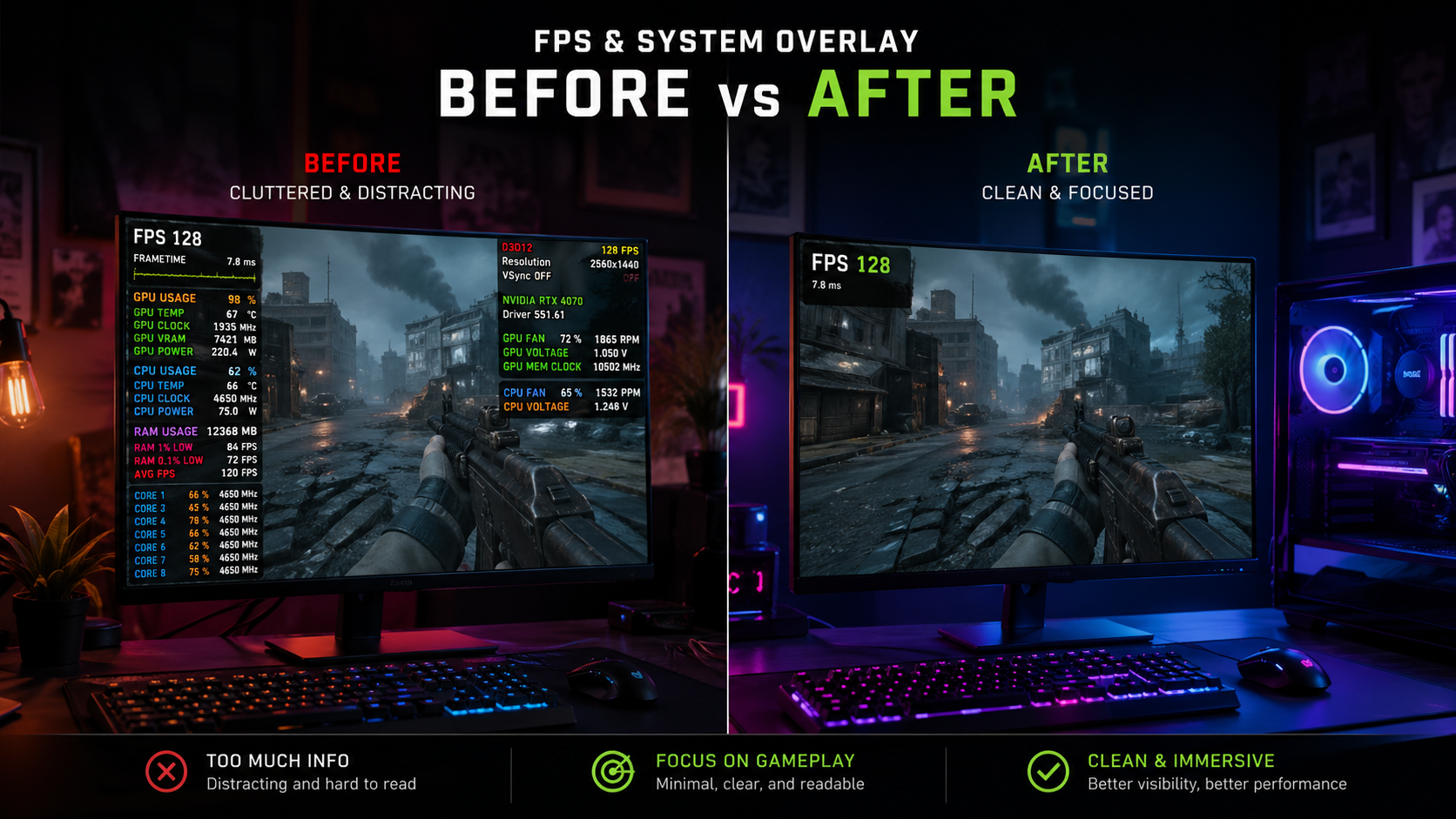
To turn off FPS, GPU, CPU & latency overlay, open the software that shows it (NVIDIA, AMD, Steam, or Xbox Game Bar) and disable performance monitoring in its settings. You can also use shortcuts like Alt + R or Ctrl + Shift + O for instant removal.
In this guide, you will learn simple methods to remove these overlays and enjoy a clean, distraction-free gaming experience.
What Is FPS and Why Does It Appear on Screen?
FPS shows how many frames your system displays every second.
- Higher FPS = smoother gameplay
- Lower FPS = lag, stuttering, or choppy visuals
For most games:
- 30 FPS = playable
- 60 FPS = smooth
- 120+ FPS = ultra-smooth (competitive gaming)
What GPU and CPU Usage Metrics Show?
These metrics help you understand your system performance:
- GPU usage shows how hard your graphics card is working
- CPU usage shows how much processing power is being used
If one is at 100% while the other is low, you may have a bottleneck issue.
If your GPU is constantly at 100% while the CPU is low, you might be facing a GPU bottleneck learn more in our guide on What Does GPU Bound Mean?
What Latency Means in Gaming?
Latency (ping) is the delay between your action and the game’s response.
- Low latency = faster reactions
- High latency = delay, lag, poor gameplay
Especially important in games like FPS shooters and online multiplayer titles.
Why These Stats Appear on Your Screen
These overlays usually come from:
- Graphics driver software (NVIDIA / AMD)
- Game launchers (Steam)
- Built-in Windows tools
- Third-party apps like MSI Afterburner
Sometimes, multiple overlays run together without you realizing it.
Why You Might Want to Turn Off FPS, GPU, CPU & Latency
Screen Clutter During Gameplay:
Constant numbers on the screen can ruin immersion and make visuals look messy.
Performance Distraction:
Focusing on stats instead of gameplay can actually reduce your performance.
Recording or Streaming Clean Gameplay:
Overlays can appear in recordings and streams, making your content look unprofessional.
Troubleshooting Is Already Done:
Once performance issues are fixed, these stats are no longer necessary.
How to Turn Off FPS, GPU, CPU & Latency Overlay (Quick Methods)
Use Keyboard Shortcuts (Instant Fix)
Most overlays can be turned off instantly:
- NVIDIA: Alt + R
- AMD: Ctrl + Shift + O
- Xbox Game Bar: Win + G
This is the fastest solution in most cases.
Disable via In-Game Settings:
Many modern games include an FPS toggle:
- Open Settings
- Look for Performance or Display
- Turn off FPS counter
Turn Off Through Overlay Software:
If the overlay comes from external software, disable it from its settings panel.
How to Turn Off FPS, GPU, CPU & Latency in NVIDIA Overlay:
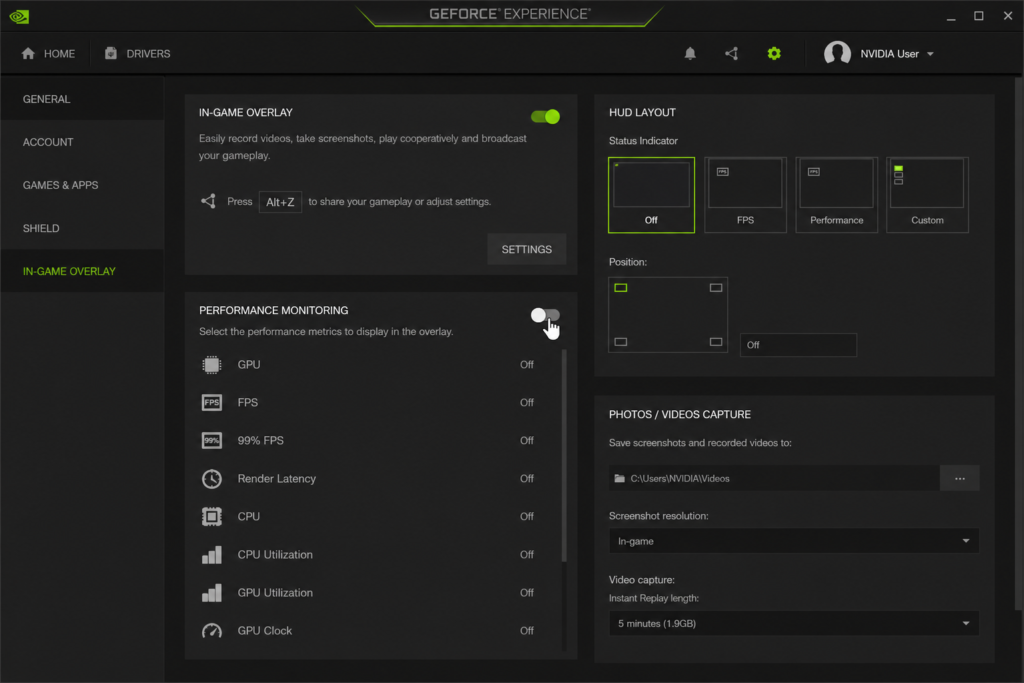
If you are using NVIDIA, the overlay usually comes from GeForce Experience.
For more advanced settings, you can also check the official NVIDIA guide here:
Step-by-Step Instructions:
- Press Alt + Z
- Click on Performance
- Turn off Performance Monitoring
- Go to HUD Layout
- Disable all overlay elements
Quick Toggle Shortcut
Press Alt + R to instantly turn it ON/OFF
How to Turn Off FPS, GPU, CPU & Latency in AMD Radeon Software?
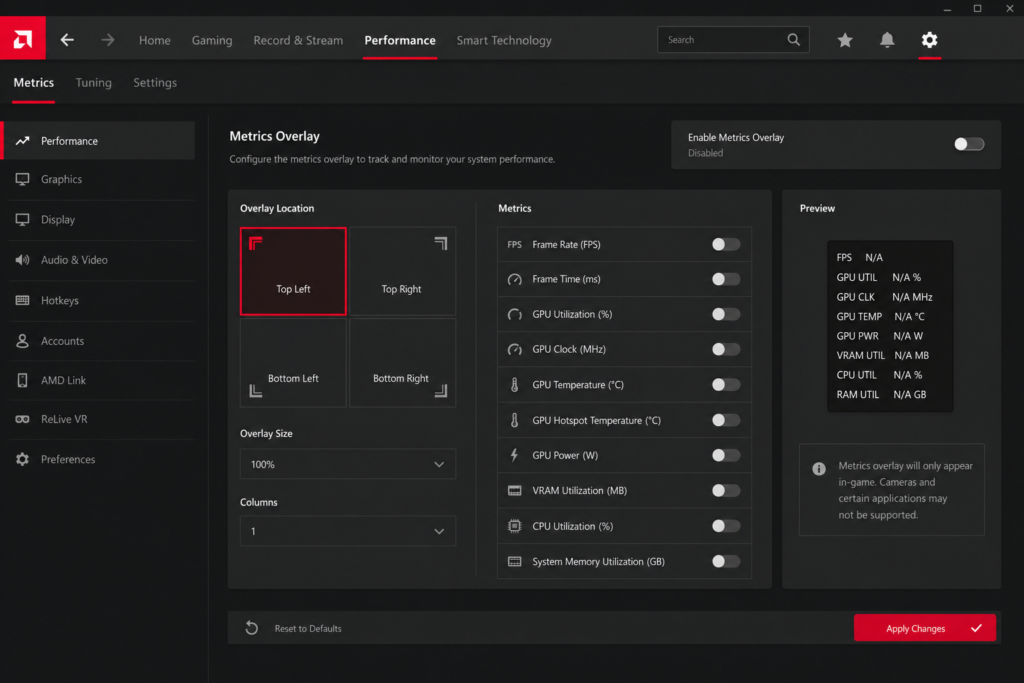
Step-by-Step Instructions:
- Press Alt + R
- Go to the Performance tab
- Click Metrics Overlay
- Toggle it OFF
Quick Shortcut
Use Ctrl + Shift + O
How to Turn Off FPS Counter in Steam
Steps:
- Open Steam
- Go to Settings
- Click In-Game
- Find the in-game FPS counter
- Set it to Off
Restart your game after changes
How to Turn Off Xbox Game Bar Performance Overlay (Windows)
Steps:
- Press Win + G
- Open Performance widget
- Click the Pin icon to unpin
- Close Game Bar
Optional: Disable Completely:
- Go to Settings > Gaming > Xbox Game Bar
- Turn it OFF
How to Turn Off FPS Overlay in Popular Games?
Call of Duty (Warzone / MW):
- Settings > Interface
- Disable Telemetry / FPS
Fortnite:
- Settings > Video
- Turn off Show FPS
Valorant:
- Settings > Video > Stats
- Disable all stats
Apex Legends:
- Settings > Gameplay
- Turn off Performance Display
PUBG:
- Disable the FPS counter from settings
How to Disable Third-Party FPS & Performance Overlays?
MSI Afterburner + RivaTuner:
- Open RivaTuner
- Turn On-Screen Display OFF
Fraps:
- Open Fraps
- Disable FPS overlay
NZXT CAM:
- Go to settings
- Turn off monitoring overlay
Discord Overlay:
- Settings > Game Overlay
- Turn it OFF
Fix: FPS, GPU, CPU Overlay Won’t Turn Off:
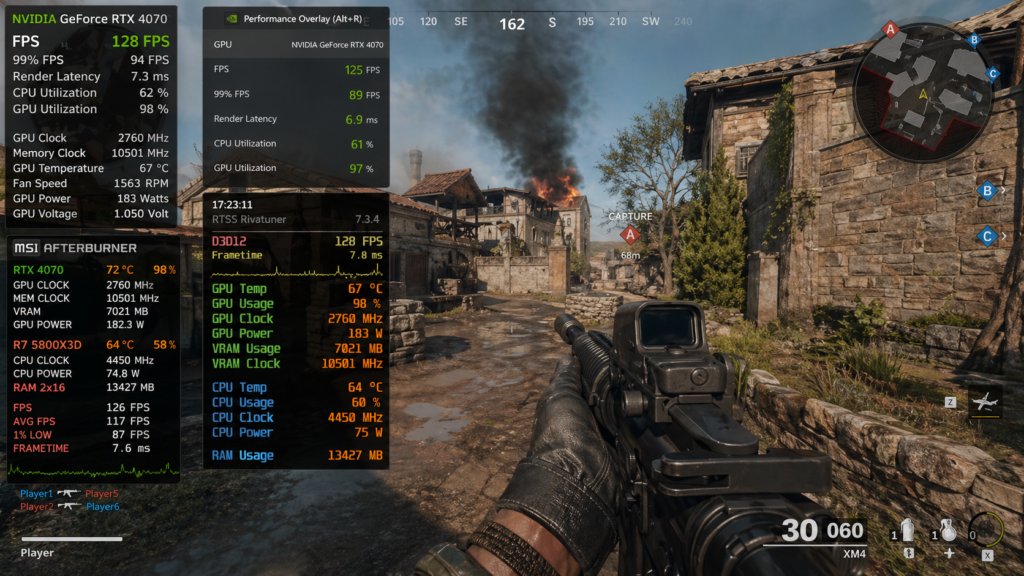
Identify the Source of the Overlay:
- Green text → NVIDIA
- Simple text → Steam
- Detailed panel → MSI Afterburner
Disable Startup Programs:
- Open Task Manager
- Go to the Startup tab
- Disable overlay apps
Update Graphics Drivers:
Outdated drivers can cause overlay bugs and glitches.
If you are troubleshooting performance, make sure your GPU isn’t overheating. Read: Is 85 Celsius Hot For GPU?
Reinstall Overlay Software:
If nothing works, reinstall the software.
Check Background Apps:
Some overlays run silently in the background.
Keyboard Shortcuts to Toggle FPS, GPU & CPU Overlays:
| Tool | Shortcut |
| NVIDIA | Alt + R |
| AMD | Ctrl + Shift + O |
| Xbox Game Bar | Win + G |
| Steam | No default |
Tips to Avoid FPS Overlay Appearing Again:
Disable Auto-Start for Overlay Apps:
Stop apps from launching automatically with Windows.
Save In-Game Settings:
Always apply and save your changes.
Turn Off Monitoring Tools Permanently:
Only use overlays when needed.
Use Clean Gaming Mode:
Close unnecessary background apps before playing.
Pro Tips:
- Running multiple overlays at the same time can slightly reduce performance
- Keep overlays ON only when testing FPS or troubleshooting
- For competitive games, disable everything except essential stats
FAQ’s:
How do I turn off the FPS counter on my PC?
Open the software generating the overlay and disable it from the settings
What key turns off the FPS overlay?
Alt + R (NVIDIA)
Ctrl + Shift + O (AMD)
Why is my FPS counter always on?
It is enabled in the background software or set to auto-start.
How do I remove the GPU and CPU usage overlay?
Disable performance monitoring in NVIDIA, AMD, or third-party apps.
Can I turn off FPS without uninstalling the software?
Yes, just disable the overlay in settings.
Why does my overlay come back after a restart?
Because the app is set to run at startup.
Is the FPS overlay affecting performance?
Usually no, but heavy monitoring tools can slightly impact performance.
Conclusion:
Turning off FPS, GPU, CPU, and latency overlay is simple once you identify the source. Whether it’s NVIDIA, AMD, or in-game settings, quick fixes like shortcuts or disabling monitoring tools solve the issue fast. After removing the FPS, GPU, CPU, and latency overlay, you can enjoy smoother, distraction-free gameplay without unnecessary on-screen stats.
Best Tools to Monitor FPS (When You Actually Need It)
- NVIDIA Performance Overlay
- AMD Metrics
- MSI Afterburner
Use them only when needed, then turn them off again.
Want deeper monitoring? Learn how to check cooling performance in our guide on: How to Look at GPU Fan Speed?
Hey! Someone in my Myspace group shared this site with us so I came to take a look.
I’m definitely loving the information. I’m bookmarking and will be tweeting this to my followers!
Exceptional blog and great style and design.