
If your PC suddenly gets loud while gaming, your GPU fan speed is usually the reason. It shows how hard your GPU is working to stay cool. Most modern GPUs (2026 models included) adjust fan speed automatically based on temperature, so what you see is always changing in real time.
In this guide, you will learn how to look at GPU fan speed, how GPU fan speed works, how to check it properly, and what values are considered safe for both old and new graphics cards.
What Is GPU Fan Speed?
GPU fan speed is how fast your graphics card fans spin to control heat. It is measured in RPM (revolutions per minute) or sometimes shown as a percentage.
Higher speed means better cooling but more noise. Modern GPUs use smart fan curves, so fans only spin faster when the temperature rises, especially in gaming or heavy workloads. This behavior is controlled by a GPU fan curve, which adjusts speed automatically based on temperature to prevent thermal throttling.
I have tested GPU fan speed on cards like RTX 3060 and RX 6700 XT, and one thing is clear: many users think something is wrong when it is actually normal behavior. For example, if your PC suddenly sounds like a jet engine during gaming, that is your GPU cooling system reacting to heat, not a fault.
How Can You Check GPU Fan Speed?
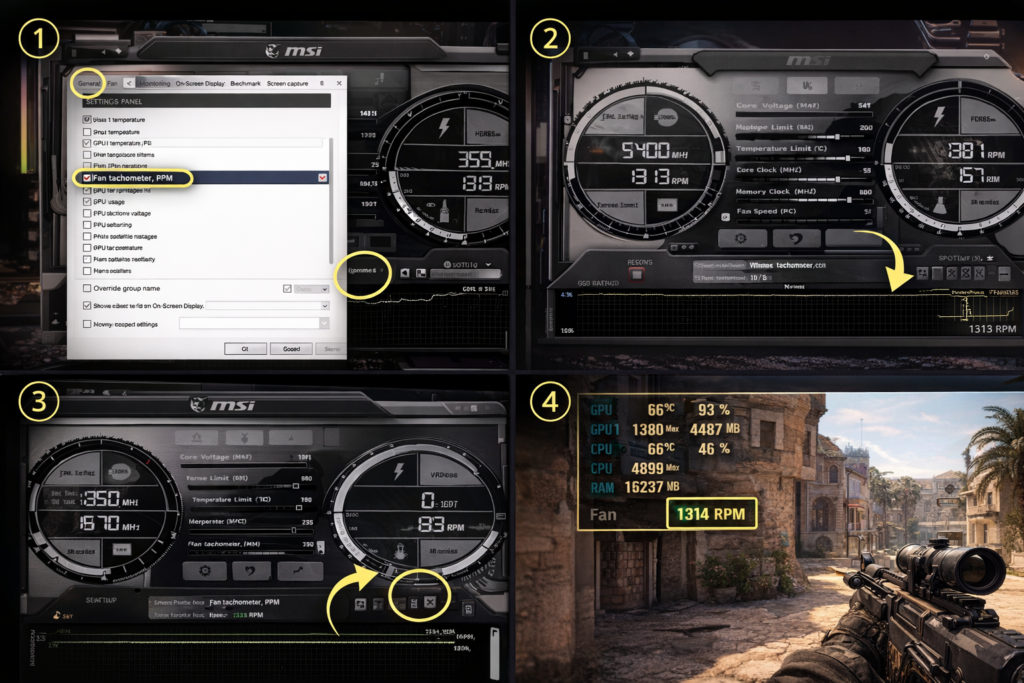
You can not check GPU fan speed directly in Windows so you will need a simple monitoring tool. Built-in tools like Task Manager would not show it, so you must use third-party apps.
Easy Methods to Check
- Install MSI Afterburner and open the hardware monitor
- Use GPU-Z to view real-time RPM values
- Enable overlay (RTSS) to see fan speed while gaming
From experience, MSI Afterburner gives the most reliable readings because it directly uses the GPU fan speed sensor.
These tools work on both older GPUs and the latest RTX/AMD cards without issues.
Also Read: How to Remove a GPU?
Which Tools Show GPU Fan Speed?
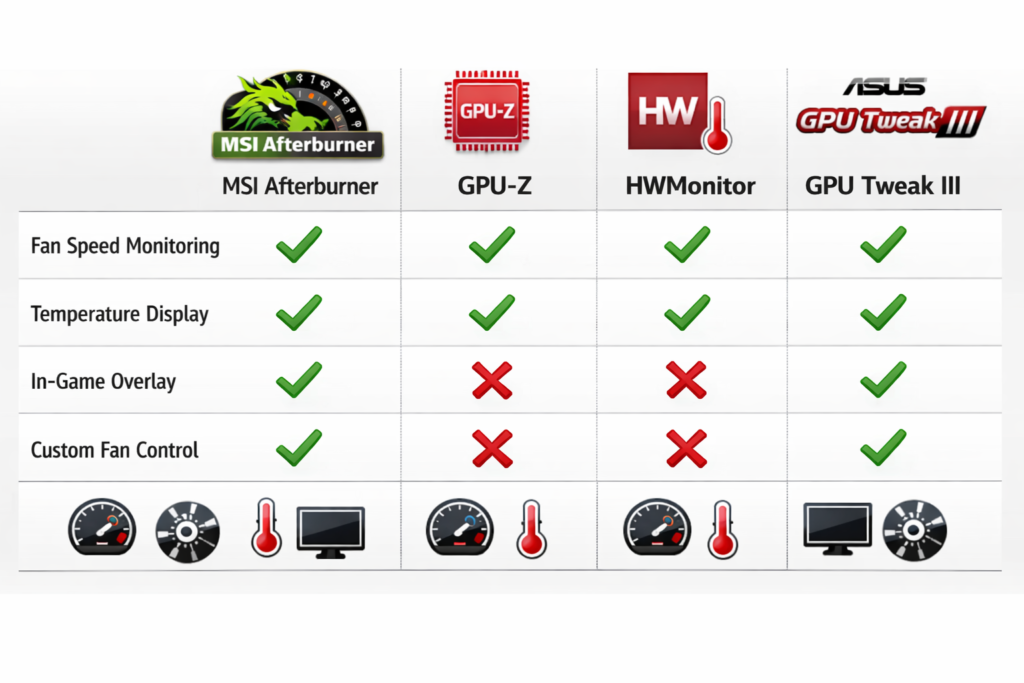
Different tools show fan speed in different ways. Some are simple, others give full control.
| Tool Name | Shows Fan Speed | Extra Features | Best For |
| MSI Afterburner | Yes | Fan control, overlay | Beginners + gamers |
| GPU-Z | Yes | Detailed sensor data | Advanced users |
| HWMonitor | Yes | Full system monitoring | Quick checks |
| ASUS GPU Tweak III | Yes | Custom fan curves | ASUS GPU users |
These tools are updated for newer GPUs, including RTX 4000 and RX 7000 series.
For official guidance on NVIDIA GPU fan control and advanced settings, check NVIDIA’s fan control page.
Can You Monitor GPU Fan Speed While Gaming?
Yes, and this is where most people get it wrong: you do not need to tab out.
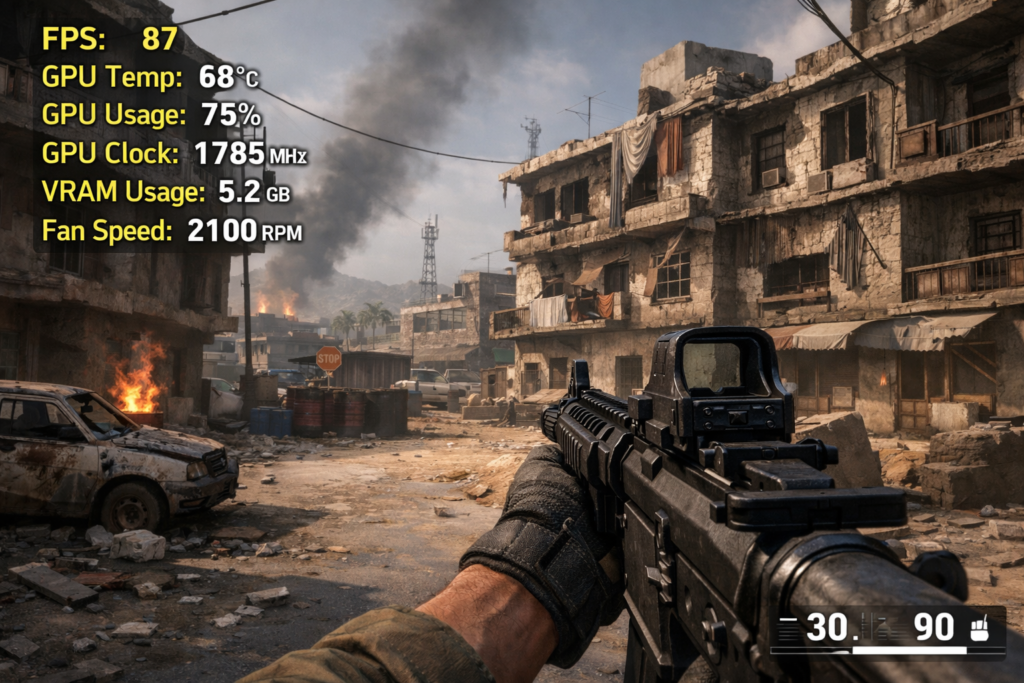
Real-Time Monitoring Setup
- Use MSI Afterburner with RTSS overlay
- Enable fan speed in monitoring settings
- Launch any game and see live data on the screen
This helps you spot overheating instantly without stopping gameplay.
What Is a Normal GPU Fan Speed?
Fan speed depends on temperature, not a fixed number. Modern GPUs adjust automatically, so values change based on load.
| Usage State | Fan Speed (%) | RPM Range |
| Idle | 0 to 30% | 0 to 1000 RPM |
| Light Use | 30 to 50% | 1000 to 1800 RPM |
| Gaming | 50 to 70% | 1800 to 2500 RPM |
| Heavy Load | 70 to 100% | 2500 to 3500 RPM+ |
If your GPU stays in these ranges, it is working normally. If your GPU constantly stays above 80% even at low usage, it may indicate poor airflow or early signs of thermal throttling.
Read Guide: How Much GPU Usage Is Normal?
Why Is GPU Fan Speed Not Showing?
If fan speed is missing, it is usually not a hardware issue but a software limitation.
Common Reasons
- Using Task Manager (it does not show fan speed)
- Outdated monitoring software
- Driver not installed properly
- GPU sensors not supported
Switching to updated tools like Afterburner fixes this in most cases.
Why Is Your GPU Fan Not Spinning?
Do not panic, this is normal on modern GPUs.
Possible Causes
- Zero RPM mode (fans stop under ~50–60°C)
- Low workload (no heat = no fan use)
- Custom fan curve set too low
- Actual hardware fault (rare)
If temps are low and fans are off, your GPU is working exactly as designed. I have seen many users assume their GPU is dead, but in most cases, it is just zero RPM mode working as designed.
How Do You Fix GPU Fan Speed Issues?
If your fan behavior looks unusual, start with basic checks before assuming hardware failure.
Quick Fix Steps
- Update GPU drivers
- Reset fan curve to default
- Reinstall monitoring software
- Check for dust or airflow blockage
Most issues are software-related, not hardware failures.
FAQs
Is 0 RPM GPU fan speed normal?
Yes, modern GPUs stop fans at low temperatures to reduce noise and wear, which is completely normal behavior.
Can you check the GPU fan speed while gaming?
Yes, you can monitor GPU fan speed in real time using overlay tools like MSI Afterburner without leaving the game.
What is a good GPU fan speed range?
A safe GPU fan speed is usually between 40% to 70% during gaming, depending on temperature and workload.
Why is my GPU fan speed not showing?
GPU fan speed may not appear due to unsupported software, outdated drivers, or using tools like Task Manager.
Does NVIDIA Control Panel show fan speed?
No, NVIDIA Control Panel does not provide fan speed monitoring or control options.
Conclusion:
Checking GPU fan speed is not complicated, but doing it correctly makes a big difference in performance and hardware safety. Most issues come from using the wrong tools or misunderstanding how modern GPUs behave, especially with zero RPM mode. By using proper monitoring software and understanding normal fan ranges, you can keep your system cool, quiet, and efficient. A well-monitored GPU not only performs better but also lasts longer without unexpected problems.