
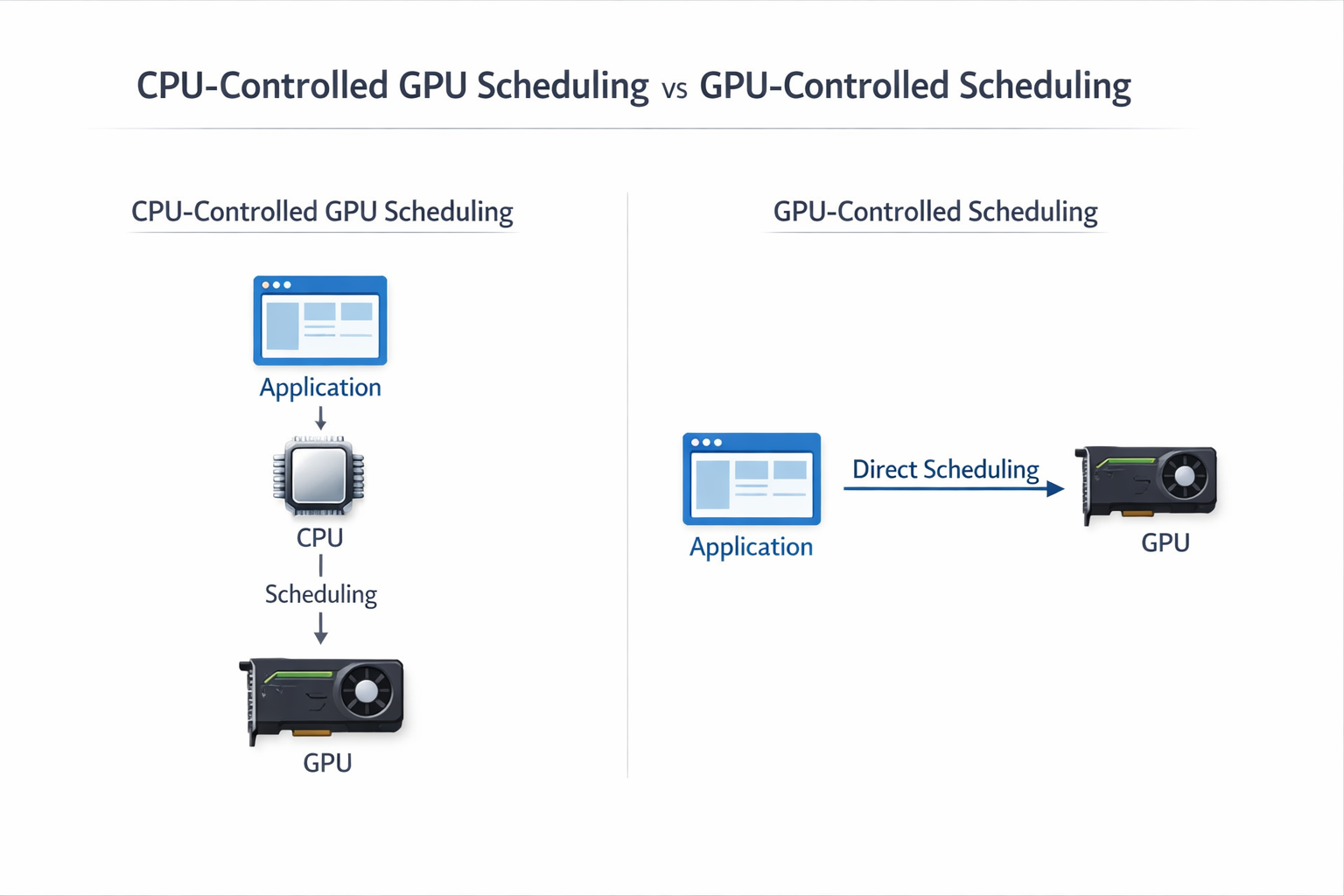
Hardware-accelerated GPU scheduling is a Windows feature that lets your graphics card manage its own tasks instead of relying on the CPU. This can reduce latency, improve system responsiveness, and provide smoother performance in games and graphics-heavy applications on supported hardware.
In this guide, you will learn how it works, when to use it, and whether it can improve performance on your specific setup.
Basic Explanation of the Concept:
Hardware-accelerated GPU scheduling allows your GPU to control how graphics tasks are handled directly. In older systems, the CPU manages everything first. This creates extra steps.
When you enable this feature, your GPU processes tasks more directly. In testing on mid-range systems, users often report slightly smoother gameplay, especially in fast games.
How does it differ from Traditional GPU Scheduling?
In the traditional model, your CPU controls the task queue. Every command goes through the CPU before reaching the GPU.
With hardware-accelerated scheduling, the GPU handles this queue itself. This reduces delays between instructions. In practical terms, this can improve frame timing more than raw FPS.
Role of the GPU vs CPU in Task Management:
Without this feature, the CPU handles both system tasks and GPU scheduling. This can create a bottleneck in CPU-heavy situations.
With it enabled, the GPU becomes more independent. This frees CPU resources. This is useful if you stream, record gameplay, or run background apps while gaming.
Want to understand how workload shifts between Is Minecraft CPU or GPU-intensive?
How Hardware-Accelerated GPU Scheduling Works?
Traditional Scheduling (CPU-Controlled Model:
In the older system:
- CPU receives rendering tasks
- The CPU organizes and prioritizes them
- CPU sends commands to GPU
- GPU executes them
- This adds extra delay, especially when CPU load is high.
This process adds a delay because every step depends on the CPU.
New Model (GPU Takes Over Scheduling Tasks)
With hardware-accelerated scheduling
- Applications send tasks to GPU memory
- GPU scheduler processes tasks directly
- GPU executes without waiting for CPU decisions
This reduces communication overhead and speeds up task handling.
Step-by-Step Workflow Comparison:
Traditional
- App → CPU → GPU → Output
New system
- App → GPU → Output
Fewer steps mean faster execution.
Impact on Latency and Performance:
You may notice
- Lower input lag in games
- Faster response when moving your mouse
- Slight improvement in smoothness
The change is usually small but noticeable in fast-paced scenarios.
Key Benefits of Hardware-Accelerated GPU Scheduling:
Reduced Input Lag in Games:
Players using fast-paced games like shooters often notice quicker input response. This helps in competitive situations.
Improved Frame Consistency (Less Stutter):
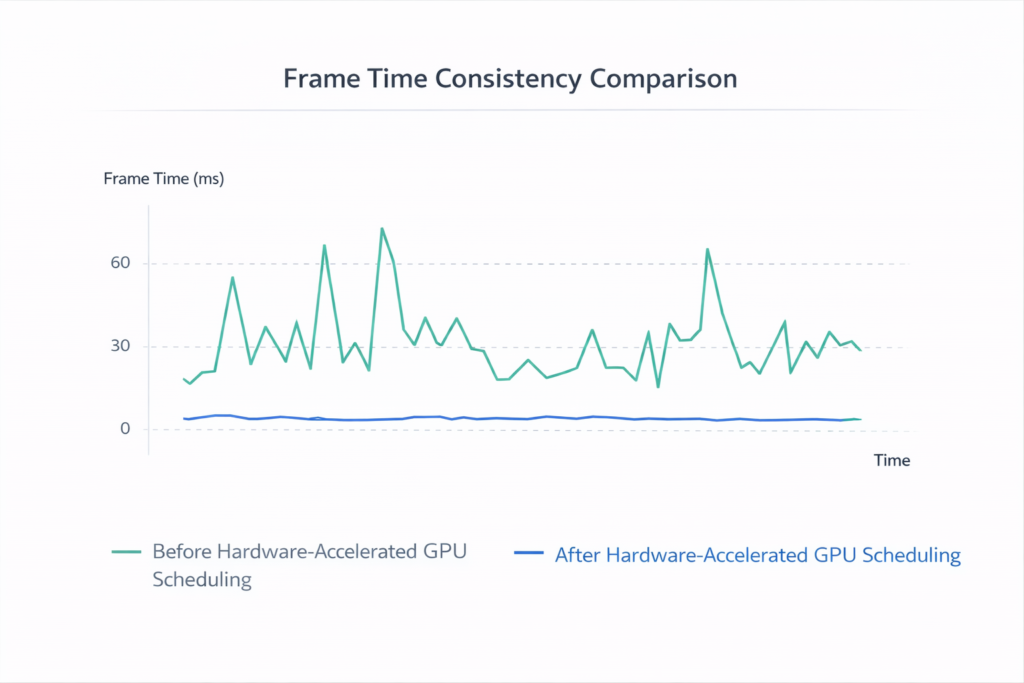
Frame delivery becomes more stable. This reduces micro-stutter, especially on systems with balanced CPU and GPU.
Better CPU Resource Allocation:
Your CPU gets free resources. This helps when
- Streaming
- Running Discord or browsers
- Recording gameplay
Check how GPU load behaves in real systems. How Much GPU Usage Is Normal?
Potential Performance Gains in Creative Apps:
In apps like video editors, timeline playback feels smoother. Heavy rendering tasks remain mostly unchanged.
Are There Any Downsides or Risks?
Compatibility Issues with Older GPUs:
Older graphics cards do not support this feature. Even some supported GPUs may not show improvements.
Driver-Related Bugs or Instability:
Some users report
- Random stutter
- Game crashes
- Display glitches
These issues usually fix after driver updates.
Cases Where Performance May Not Improve:
Not every system gains performance. In some cases
- FPS stays the same
- System feels unchanged
- Rare cases show slight drops
System Requirements for Hardware-Accelerated GPU Scheduling:
Check official system support and latest updates directly from Microsoft
Supported Operating Systems (Windows Versions)
You need
- Windows 10 version 2004 or newer
- Windows 11
Older versions do not support this feature.
Compatible Graphics Cards (NVIDIA, AMD)
Supported GPUs include
- NVIDIA GTX 1000 series and newer
- AMD RX 5000 series and newer
Driver Version Requirements:
The latest GPU drivers are required. Without updated drivers, the option may not appear.
How to Enable Hardware-Accelerated GPU Scheduling?
Step-by-Step Guide for Windows 10:
- Open Settings
- Go to System
- Click Display
- Open Graphics settings
- Turn on Hardware-accelerated GPU scheduling
- Restart your PC
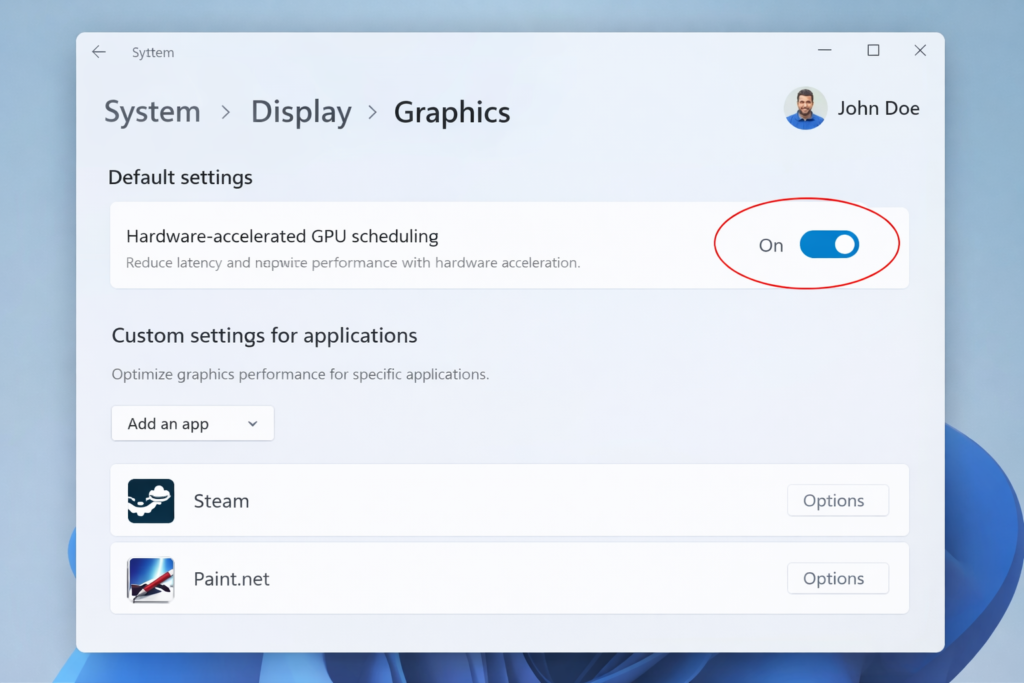
Step-by-Step Guide for Windows 11:
- Open Settings
- Go to System
- Click Display
- Select Graphics
- Open Default graphics settings
- Enable the feature
- Restart your PC
How to Verify If It is Enabled?
Check Graphics settings. You can also monitor GPU usage and latency in Task Manager for changes.
Hardware-Accelerated GPU Scheduling vs Traditional Scheduling:
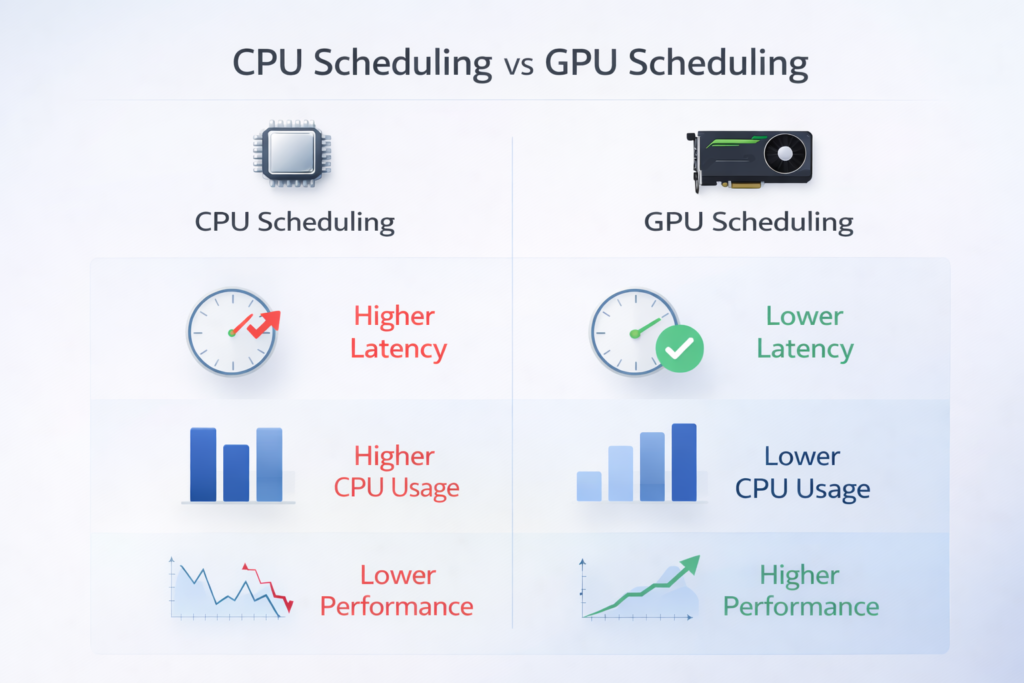
Side-by-Side Comparison Table:
Traditional:
- CPU handles scheduling
- Higher latency
- More CPU usage
Hardware-accelerated:
- GPU handles scheduling
- Lower latency
- Reduced CPU load
Performance Benchmarks Overview:
Real-world testing shows
- 1 to 5 percent FPS change in most games
- Better frame time consistency
- More stable gameplay experience
When Each Method Works Best:
Use hardware-accelerated scheduling if
- You have modern hardware
- You play competitive games
- You multitask
Stick to traditional if
- You face bugs
- Your system is older
Does Hardware-Accelerated GPU Scheduling Improve Gaming Performance?
Real-World Gaming Benchmarks:
In most games:
- The FPS increase is small, around 1 to 5 percent
- Frame time consistency improves more than FPS
Impact on FPS vs Frame Time:
You may not see big FPS gains. The real benefit is smoother frame delivery. This makes gameplay feel better, even if FPS stays the same.
Game Types That Benefit the Most:
You benefit more in
- Competitive shooters
- Fast-paced action games
- Esports titles
Impact on Creative Workloads and Productivity:
Video Editing and Rendering Performance:
Editing software may run more smoothly when previewing timelines. Export times usually stay similar.
3D Modeling and Animation:
Viewport performance can feel more stable. Complex scenes load more smoothly.
Streaming and Multitasking:
You can stream and game together with less CPU pressure. This improves overall system balance.
When Should You Turn Hardware-Accelerated GPU Scheduling On or Off?
Best Scenarios to Enable It:
Turn it on if:
- You have a modern GPU
- You play competitive games
- You notice an input delay
Situations Where You Should Disable It:
Turn it off if
- You face crashes
- Games stutter more
- Drivers are unstable
Testing Performance on Your System:
Test both modes
- Play the same game
- Check FPS and smoothness
- Keep the setting that feels better
Troubleshooting Common Issues:
Option Not Showing in Settings:
Fix it by
- Updating Windows
- Installing the latest GPU drivers
- Restarting your system
Performance Drops After Enabling:
Try
- Turning the feature off
- Updating drivers
- Checking background apps
Driver Update Fixes:
Always use the latest stable drivers. Many issues get fixed with updates.
Expert Tips to Maximize GPU Performance:
Keep Drivers Updated:
New drivers improve stability and performance. Check updates regularly.
Optimize In-Game Settings:
Lower heavy settings, such as shadows and reflections. This gives better performance than relying on system features alone.
Combine with Other Performance Features (e.g., Game Mode)
Use
- Windows Game Mode
- Latest DirectX version
- Proper cooling
These steps give better results than a single feature alone.
FAQ’s:
Does hardware-accelerated GPU scheduling increase FPS?
Yes, but only slightly in most cases. You will notice smoother frame delivery, more than a big FPS boost.
Should you turn hardware-accelerated GPU scheduling on?
Yes, if your system supports it and runs stably. It can improve responsiveness and reduce CPU load.
Can hardware-accelerated GPU scheduling cause issues?
Yes, in some systems, it may cause crashes, stutter, or driver-related problems.
Why is hardware-accelerated GPU scheduling not showing on your PC?
This usually happens if your Windows version is outdated, your GPU is not supported, or your drivers are not updated.
Does hardware-accelerated GPU scheduling help in video editing and streaming?
It can improve smoothness and reduce CPU usage, but export times and overall performance gains are usually small.
Conclusion:
Hardware-accelerated GPU scheduling can improve system responsiveness by letting your GPU manage its own tasks. You may see smoother gameplay and lower input delay on supported systems. Results vary, so test it on your setup and keep it enabled only if it delivers stable and better performance.