
A GPU reset means restarting the graphics driver or restoring its settings so the graphics system works normally again. It is a quick troubleshooting step used when screens freeze, games crash, or displays flicker. Knowing how to reset the GPU can save time before reinstalling drivers or replacing hardware.
This guide explains safe and practical methods used by technicians to reset GPU drivers
What Is a GPU Reset?
A GPU reset restarts the graphics driver or reloads the graphics subsystem without shutting down the whole computer. It clears temporary glitches that can cause screen freezes, black screens, or sudden FPS drops.
For example, gamers sometimes experience a frozen screen while the game audio keeps playing. In many of these situations, restarting the graphics driver quickly restores the display without shutting down the system.
Modern operating systems such as Windows 10 and Windows 11 include built-in recovery mechanisms that automatically reload the GPU driver when it stops responding. Microsoft calls this system Timeout Detection and Recovery (TDR).
| Term | Meaning |
| GPU Reset | Restarting the graphics driver to fix display issues |
| Driver Reload | Windows reloads the GPU driver without rebooting |
| TDR System | A Windows feature that detects and recovers from GPU crashes |
Microsoft explains that Windows automatically restarts unresponsive graphics drivers using a system called Windows Timeout Detection and Recovery (TDR), which helps prevent full system crashes.
Why Should You Reset a GPU?
Sometimes the GPU driver stops responding due to heavy workloads, outdated drivers, or software conflicts. Resetting the GPU refreshes the graphics pipeline and often restores normal display behavior.
Common situations where users reset GPUs:
- Screen freezes during gaming or video editing
- The monitor suddenly goes black for a few seconds
- The driver crashes after installing a new graphics update
- Games show sudden FPS drops or graphical glitches
Many PC technicians try this quick fix first because it takes only a few seconds and often solves temporary driver crashes.
Sometimes display crashes are caused by overheating, so it is useful to know whether an 85°C GPU temperature is safe or a warning sign.
What Is the GPU Reset Shortcut?

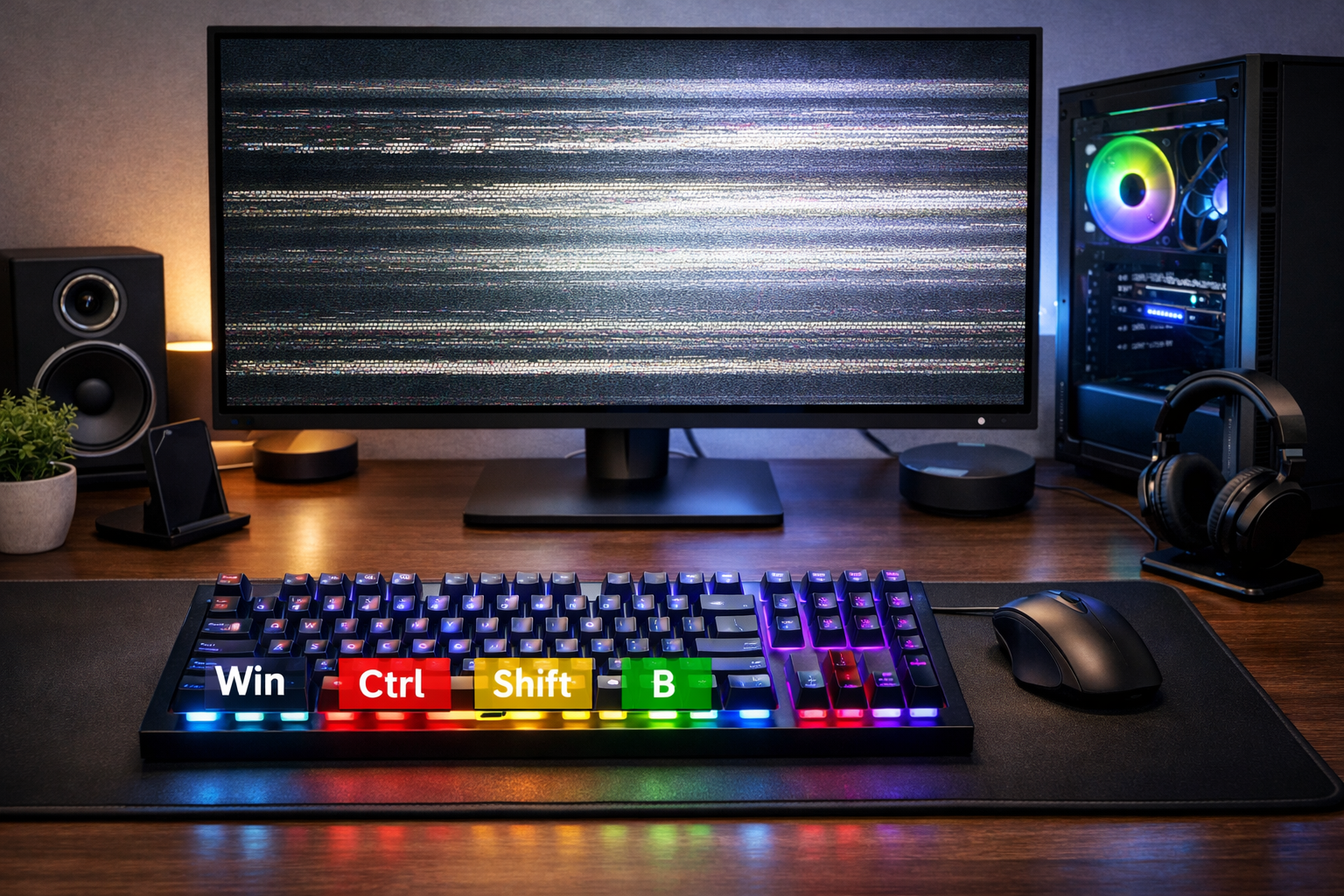
Windows includes a hidden keyboard shortcut that instantly restarts the graphics driver. It is one of the fastest ways to fix a temporary display crash.
GPU Reset Keyboard Shortcut
- Press Win + Ctrl + Shift + B
- The screen flickers briefly
- Windows reloads the graphics driver automatically
The computer stays on, and your open apps remain active. This shortcut works on most NVIDIA, AMD, and Intel GPUs on Windows 10 and Windows 11.
In real troubleshooting situations, many gamers use this shortcut when a game freezes, but Windows is still responsive.
How Do You Reset a GPU in Device Manager?
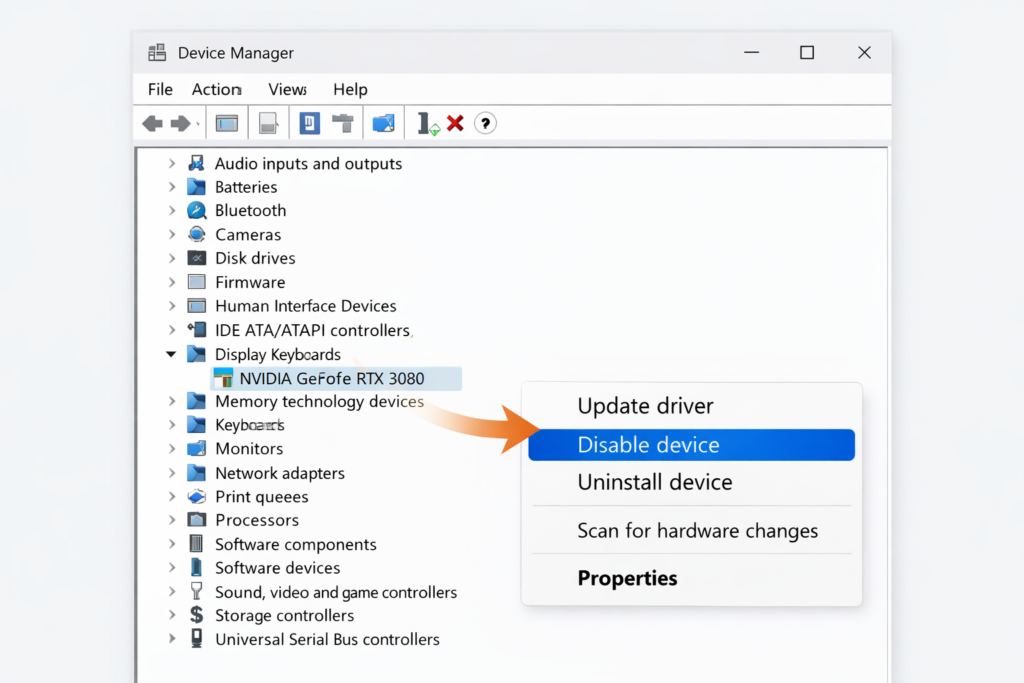
Device Manager allows you to disable and re-enable the graphics driver. This forces Windows to reload the GPU driver manually.
Steps to Reset the GPU in Device Manager
- Open Device Manager from the Start menu
- Expand Display adapters
- Right-click your GPU and choose Disable device
- Wait a few seconds and enable it again
This method works well when the display driver is installed correctly, but is temporarily stuck.
How Do You Reinstall a GPU Driver?
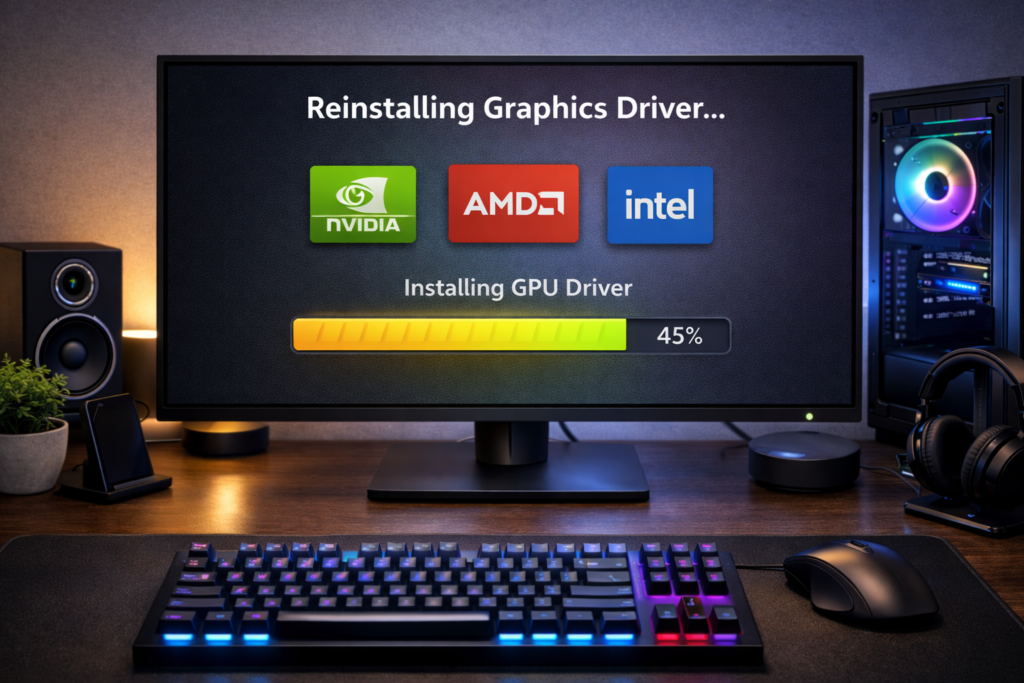
Sometimes resetting the GPU is not enough because the driver itself becomes corrupted. In this case, reinstalling the driver provides a clean setup.
Simple Driver Reinstall Steps
- Open Device Manager
- Right-click the GPU under Display adapters
- Select Uninstall device
- Restart the computer
- Install the latest driver from the GPU manufacturer’s website
Many technicians recommend downloading drivers directly from NVIDIA, AMD, or Intel instead of relying only on Windows updates.
What Happens When You Reset a GPU?
When the GPU resets, Windows reloads the graphics driver and reinitializes the graphics pipeline. The screen may briefly flicker while the system reconnects to the GPU.
Most of the time:
- Running apps stay open
- The screen refreshes quickly
- Temporary display errors disappear
If the issue were only a driver glitch, the computer usually continues working normally.
If your GPU performance looks unstable after restarting the driver, it helps to understand what normal GPU usage should look like during everyday tasks and gaming.
Is Resetting a GPU Safe?
Yes, resetting the GPU is generally safe because it only restarts the graphics driver. It does not change hardware settings or delete files.
However, during a reset:
- The screen may blink for a second
- Full-screen games might close
- Some GPU tasks may restart
Because of this, technicians often recommend trying a GPU reset before deeper troubleshooting steps.
Can You Reset a GPU Without Restarting the PC?
Yes, modern operating systems allow GPU resets without restarting the entire computer. This makes troubleshooting much faster.
Quick Ways to Reset Without Reboot
- Use the Win + Ctrl + Shift + B shortcut
- Disable and enable the GPU driver in Device Manager
- Restart the graphics driver service
Gamers and video editors often rely on these quick fixes when a display crash happens during heavy workloads.
How Do You Reset GPU Settings to Default?
Graphics control panels allow users to change performance settings, which can sometimes cause instability. Resetting them restores the default configuration.
| GPU Brand | Reset Location |
| NVIDIA | NVIDIA Control Panel Restore Defaults |
| AMD | AMD Radeon Software Reset Settings |
| Intel | Intel Graphics Command Center Restore Defaults |
After restoring defaults, restarting the system ensures the GPU loads the original configuration properly.
How Do You Reset GPU Drivers Using DDU?
Display Driver Uninstaller (DDU) is a professional tool used to completely remove GPU drivers before installing a fresh version.
Basic DDU Process:
- Boot Windows into Safe Mode
- Run Display Driver Uninstaller
- Remove the current GPU driver
- Restart and install the newest driver
Technicians usually use this method when switching GPU brands or when normal driver reinstall methods fail.
How Do You Reset an NVIDIA GPU?
Resetting an NVIDIA GPU usually means restarting the driver or restoring settings through the NVIDIA Control Panel.
Common NVIDIA reset methods include:
- Using the Windows GPU reset shortcut
- Restoring settings in NVIDIA Control Panel
- Installing the latest GeForce drivers
For example, players using RTX 3000 or RTX 4000 series cards sometimes reset the driver after a game crash to quickly recover performance.
How Do You Reset an AMD GPU?
AMD GPUs use Radeon Software, where most driver settings can be restored easily.
AMD GPU Reset Options:
- Restart the GPU driver using the Windows shortcut
- Reset settings inside AMD Radeon Software
- Perform a clean driver reinstall if issues continue
This often fixes problems like driver timeout errors or display flickering.
How Do You Reset Intel Graphics?
Intel integrated GPUs are commonly used in laptops and office computers. Their drivers can be reset through Device Manager or Intel graphics software.
Intel GPU Reset Methods:
- Restart the graphics driver shortcut
- Disable and enable Intel graphics in Device Manager
- Reset settings inside Intel Graphics Command Center
Integrated GPUs rarely require deep troubleshooting because Windows updates usually manage their drivers automatically.
Can Resetting the GPU Fix Game Crashes?
Yes, many game crashes happen when the graphics driver temporarily stops responding.
For example, during long gaming sessions, the GPU may become overloaded. Restarting the driver refreshes the graphics pipeline and often restores stable performance.
However, if crashes happen repeatedly, updating or reinstalling the GPU driver is usually the better long-term fix.
How Do You Reset the GPU on a Laptop?
Laptop GPUs usually work in a hybrid graphics system that switches between integrated and dedicated graphics. Resetting them works the same way as on desktop computers.
Quick Laptop GPU Reset
- Use Win + Ctrl + Shift + B shortcut
- Restart the driver from Device Manager
- Update drivers through the laptop manufacturer
This quick reset often solves laptop problems like sudden black screens or external monitor detection issues
FAQ’s:
Can resetting a GPU fix screen freezing issues?
Yes, resetting the GPU reloads the graphics driver and often clears temporary glitches that cause screen freezes or display lag.
Can you reset a GPU without restarting the computer?
Yes, pressing Win + Ctrl + Shift + B instantly restarts the graphics driver without shutting down the PC.
What does resetting a GPU actually do?
It refreshes the graphics driver and reconnects Windows to the GPU, which removes temporary display errors.
When should you reset a GPU driver?
Reset the GPU when you notice screen flickering, game crashes, or a driver that stops responding.
Can resetting a GPU damage the graphics card?
No, a GPU reset only restarts the driver and does not affect the hardware or stored data.
Conclusion:
Resetting the GPU is one of the fastest ways to fix common display problems without restarting the entire computer. Whether you use a keyboard shortcut, Device Manager, or reinstall drivers, these methods refresh the graphics system safely. Knowing how to reset the GPU can help resolve crashes, screen freezes, and driver errors quickly.