
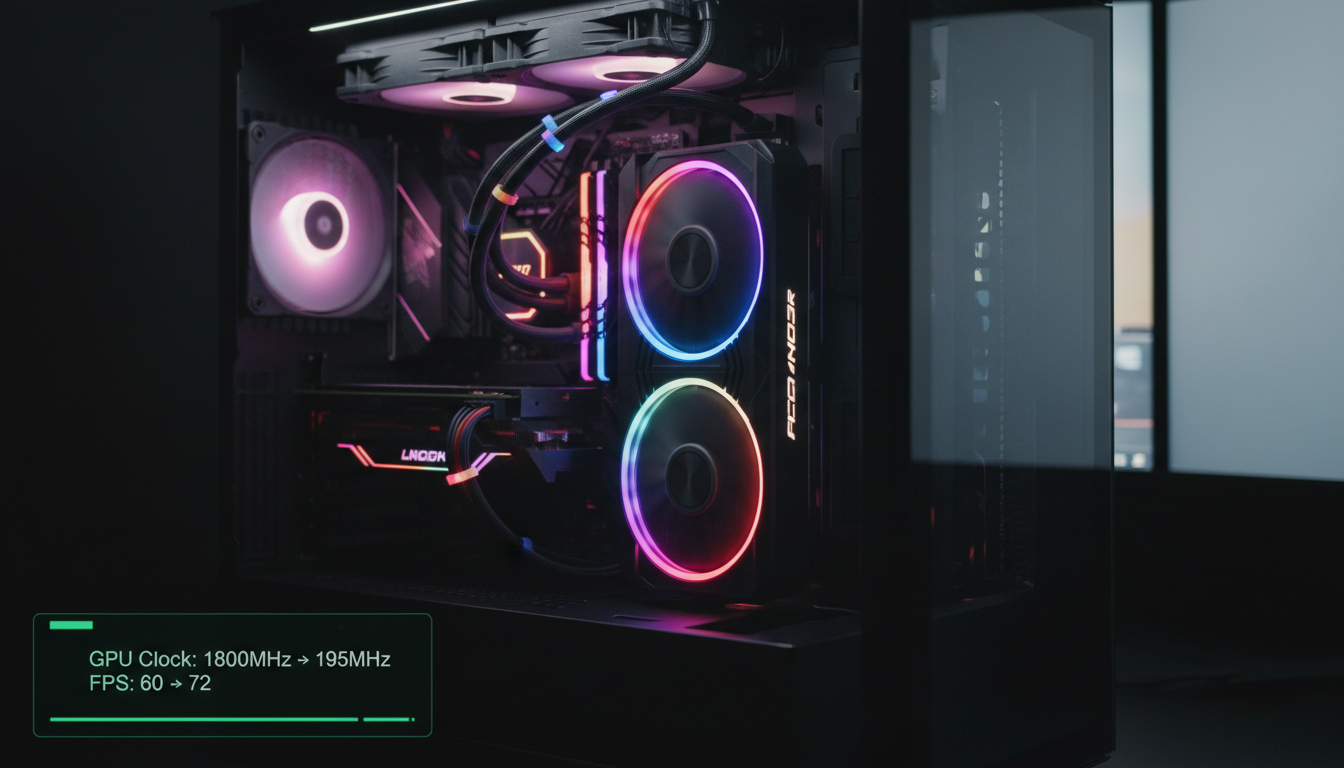
If you are asking what overclocking a GPU does, you want a clear answer. Overclocking increases your graphics card’s clock speed, allowing it to process more calculations per second. This usually increases FPS in games and reduces frame time. It does not improve texture quality, resolution, or graphics settings on its own.
This guide explains how GPU overclocking works, what changes inside your system, and whether it makes sense for you.
How Does a GPU Work Before Overclocking?
Your GPU renders every frame you see on screen. Each second, it performs millions to billions of calculations to display smooth visuals.
It handles tasks such as:
- Geometry processing
- Shading and lighting
- Texture mapping
- Ray tracing calculations
- Post-processing effects
Each of these processes runs at a specific clock speed measured in MHz.
- The core clock controls how fast the GPU processes instructions
- Memory clock controls how quickly VRAM transfers data
At stock settings, manufacturers apply conservative limits for power, voltage, and temperature. These limits balance:
- Performance
- Heat output
- Stability
- Long-term lifespan
Manufacturers intentionally leave performance headroom to ensure reliability across all units. Overclocking uses part of that unused margin.
What Does Overclocking a GPU Do to Performance?
When you overclock, you manually increase:
- Core clock speed
- Memory clock speed
- Power limit
This allows the GPU to complete more operations per second.
The result is usually:
- Higher FPS
- Lower frame time
- Smoother gameplay
- Slightly better benchmark scores
- Faster GPU-based rendering
For example, if your game runs at 60 FPS, a stable overclock may increase it to 65 to 72 FPS. The exact gain depends on:
- Silicon quality (sometimes called the silicon lottery)
- Cooling efficiency
- Power delivery quality
- Game optimization
Most modern GPUs show a 5 to 12 percent improvement with safe manual tuning. Some high-end cards may see slightly less because they are already aggressively tuned at the factory level.
Does Overclocking Improve Graphics Quality?
Overclocking does not improve visual quality. It does not change:
- Texture resolution
- Shadow detail
- Anti-aliasing quality
- Ray tracing level
- Screen resolution
It only improves how fast the GPU renders frames. If you want sharper visuals, you must increase in game settings or upgrade your GPU.
Many users confuse smoothness with quality. Higher FPS feels better, but the image itself stays the same.
Core Clock vs Memory Clock: Performance Impact
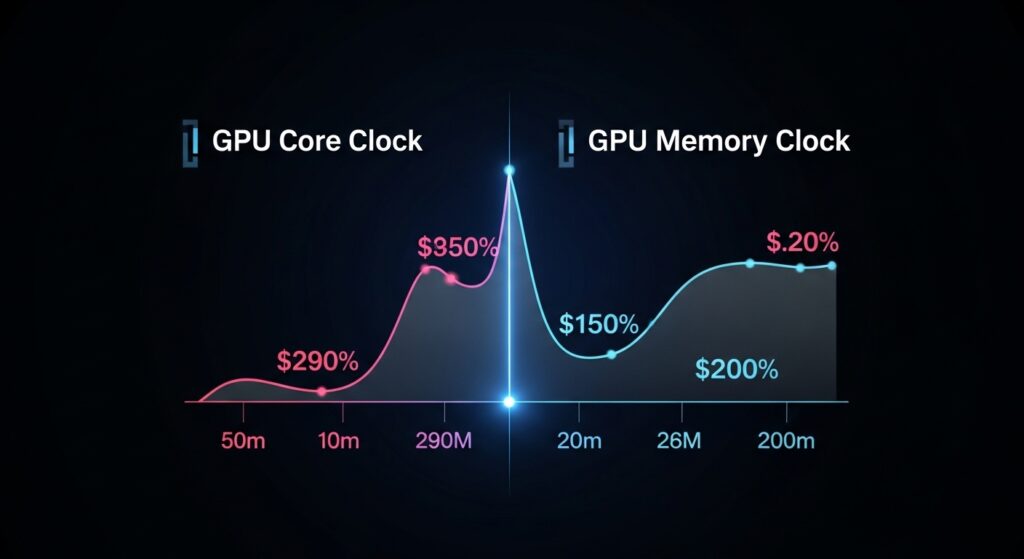
Core clock affects:
- Overall FPS
- Shader performance
- Ray tracing workload
- Physics calculations
Memory clock affects:
- High-resolution gaming
- 1440p and 4K performance
- Large texture streaming
- Open world games
At 1080p, core clock increases usually provide more benefit.
At 4K, memory bandwidth becomes more important.
Balanced tuning is essential. Pushing memory too far often causes visual artifacts.
How Overclocking Affects Power Consumption and Heat?
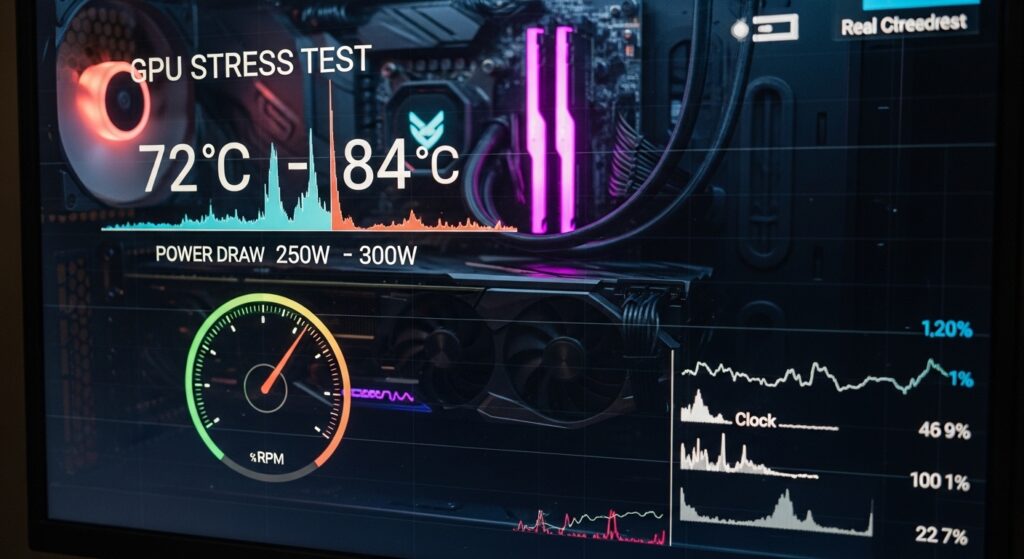
Overclocking increases power draw. A 250-watt GPU may pull 280 to 300 watts after raising power limits.
This leads to:
- Higher temperature
- Faster fan speeds
- More noise
- Increased PSU demand
Most GPUs start to throttle the clock speed near 83 to 87 degrees Celsius. If cooling is weak, performance may drop after extended gaming.
You should keep your GPU under 80 degrees Celsius for long-term stability.
Is GPU Overclocking Safe for Daily Use?
Modern GPUs include:
- Voltage protection
- Thermal limits
- Automatic throttling
- Power control systems
If you use moderate settings and monitor temperature, overclocking is generally safe.
Risk increases when you:
- Raise voltage aggressively
- Ignore high temperatures
- Use a low-quality PSU
- Skip stability testing
A stable overclock tested for 30 to 60 minutes under full load reduces risk significantly.
If you suspect hardware instability after aggressive tuning, learn how to diagnose potential issues in our guide on How to Check Motherboard Damage from the GPU? before continuing to push higher clock speeds.
What Happens When a GPU Overclock Is Unstable?
If your overclock is unstable, you may see:
- Screen flickering
- Colored dots or artifacts
- Driver crashes
- Game freezing
- Black screen
- System restart
These indicate the clocks are too high. Lower core or memory speeds until stability returns.
Memory overclocks usually cause artifacts first, while core instability often causes crashes.
Factory Overclock vs Manual Overclock:
Factory overclocked GPUs come with slightly higher clock speeds from the manufacturer. These boosts are small, usually 3 to 5 percent, and fully covered under warranty.
Manual overclocking allows you to push beyond factory settings. Gains can reach 8 to 12 percent depending on silicon quality.
Auto overclocking tools scan your GPU and apply conservative boosts. They are safer but less aggressive.
Manual tuning gives better results if you understand thermal and voltage limits.
Does Overclocking Reduce GPU Lifespan?
High voltage and extreme heat shorten electronic component lifespan over time.
However, moderate overclocking with:
- Safe voltage
- Controlled temperature
- Proper airflow
does not drastically reduce lifespan.
Many GPUs operate reliably for 4 to 6 years, even with mild overclocking. Long-term damage usually comes from overheating, not from small clock increases.
Overclocking for Creative Workloads:
GPU overclocking also affects:
- Video rendering
- 3D modeling
- GPU-accelerated effects
- Real-time viewport performance
You may see render time improvements of 3 to 8 percent in software like Blender or Premiere Pro.
Stability matters more than raw speed for professional work. Crashes during rendering waste time and data.
If you are unsure whether your design software benefits more from processor speed or graphics performance, read our detailed guide on Is Autocad Cpu Or Gpu Intensive? to understand where performance tuning matters most.
Overclocking vs Upgrading GPU:
Overclocking gives incremental gains. Upgrading gives major gains.
Example:
Overclocking may increase performance from 60 FPS to 68 FPS.
Upgrading to a next-generation GPU could increase performance from 60 FPS to 100 FPS or more.
If your GPU already runs at 95 to 100 percent usage and struggles at your target resolution, upgrading makes more sense.
If you need a small boost without spending money, overclocking helps.
Laptop GPU Overclocking Limits:
Laptop GPUs share cooling with the CPU and have strict power limits.
Most gaming laptops:
- Throttle above 85 degrees Celsius
- Have limited VRM capacity
- Allow a small overclock headroom
You may only see a 3 to 5 percent improvement. Heat often cancels out the benefit.
Improving cooling and undervolting usually works better on laptops.
Real World Benchmark Example:
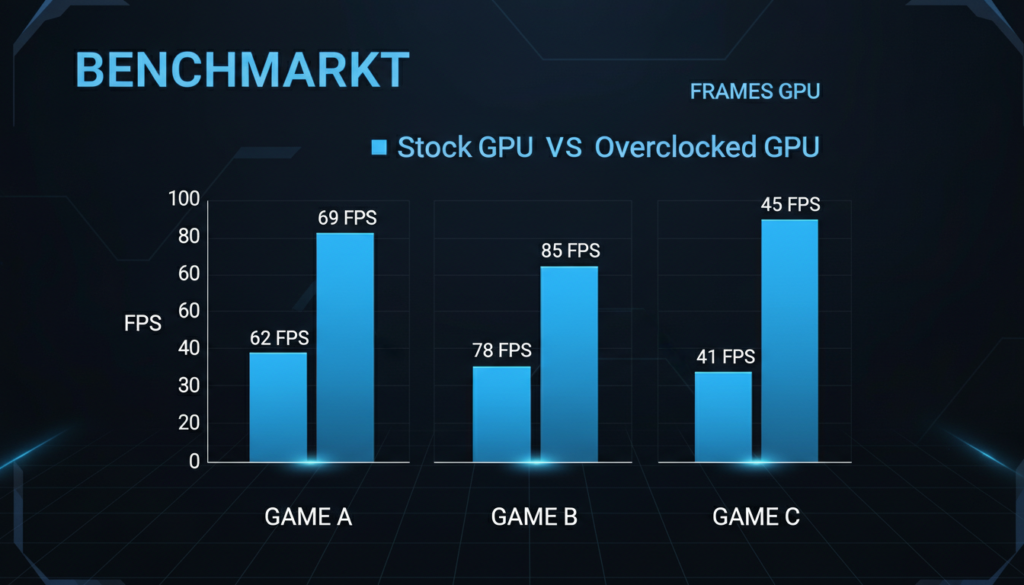
Mid-range GPU at 1080p high settings:
Game 1
Stock 62 FPS
Overclocked 69 FPS
Game 2
Stock 78 FPS
Overclocked 85 FPS
Ray tracing enabled
Stock 41 FPS
Overclocked 45 FPS
Average gain sits around 7 to 10 percent.
This shows clearly what overclocking a GPU does. It increases performance speed. It does not change visual quality or graphical settings.
FAQ’s:
Does Overclocking the GPU Increase FPS?
Yes, overclocking the GPU usually increases FPS by 5 to 12 percent, depending on cooling, power limits, and silicon quality.
Is GPU Overclocking Safe for Daily Gaming?
Yes, if you keep temperatures under 80 degrees Celsius and avoid high voltage adjustments.
Can Overclocking a GPU Damage the Graphics Card?
Yes, if you push extreme voltage or ignore overheating, long-term damage can occur.
How Much Performance Gain Does Overclocking a GPU Provide?
Most users see small but noticeable gains, often 5 to 10 extra FPS in demanding games at 1080p or 1440p.
Does Overclocking the GPU Improve Graphics Quality or Just Performance?
Overclocking the GPU improves performance and smoothness, but it does not improve texture quality, resolution, or visual detail.
Conclusion:
Overclocking boosts your graphics card’s clock speed, allowing it to render more frames per second. If you are wondering what overclocking a GPU does, the main benefit is higher FPS and smoother performance. It increases speed, not visual quality. With proper cooling and safe settings, it offers small but measurable performance gains for gaming and creative tasks.