
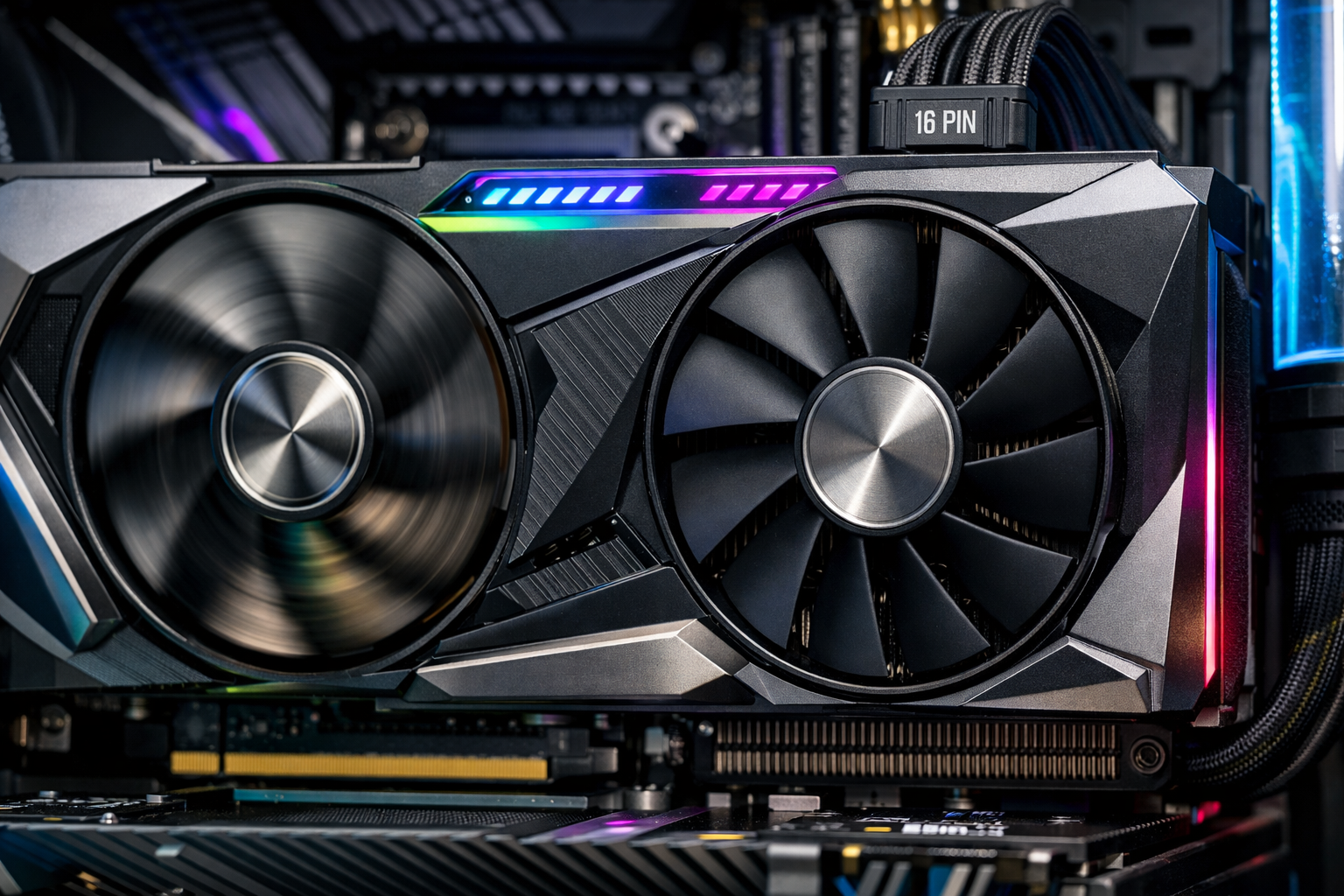
No, GPU fans do not always need to spin. Most modern graphics cards stop their fans at low temperatures and start them only when the heat increases. This design reduces noise and protects the fan’s lifespan while keeping your GPU safe during gaming or heavy tasks.
In this guide, we will explore how this system works to help you avoid unnecessary panic, improve airflow, and keep your GPU running safely during both idle time and heavy gaming sessions.
Should GPU Fans Always Spin?
Modern graphics cards do not keep their fans spinning continuously. In most cases, this is normal and safe. Your GPU turns its fans on only when the temperature rises above a set limit. This design reduces noise, saves power, and increases fan lifespan.
Below you will find clear answers to every major question about GPU fans, cooling behavior, temperature limits, and troubleshooting.
Is It Normal If GPU Fans Do Not Spin?
Yes, in most cases, this is completely normal.
Modern GPUs use passive cooling at low temperatures. When you are browsing, watching videos, or doing light tasks, GPU temperature usually stays between 30°C and 50°C. At this level, the heatsink alone can dissipate heat without active airflow.
This feature is called Zero RPM mode or Fan Stop mode.
You should only worry if:
- Idle temperature exceeds 60°C
- Fans do not spin during gaming
- GPU temperature crosses 85 to 90°C
- You experience thermal throttling
- System shuts down due to overheating
If your temperatures remain stable, your cooling system is functioning correctly.
Professional software workloads behave differently. If you use design tools, you might wonder whether AutoCAD is CPU or GPU-intensive and how that affects cooling behavior.
Why Do GPUs Stop Fans at Idle?
This is part of modern thermal management design.
GPU manufacturers optimize for:
- Silent operation
- Reduced mechanical wear
- Lower idle power consumption
- Better long-term cooling efficiency
When the GPU core temperature is low, continuous fan rotation offers almost no performance benefit. Instead, it increases:
- Bearing wear (especially sleeve bearings)
- Dust intake
- Noise levels
Most GPUs activate fans automatically around 50°C to 60°C, depending on factory fan curve settings.
What Is Zero RPM Mode?
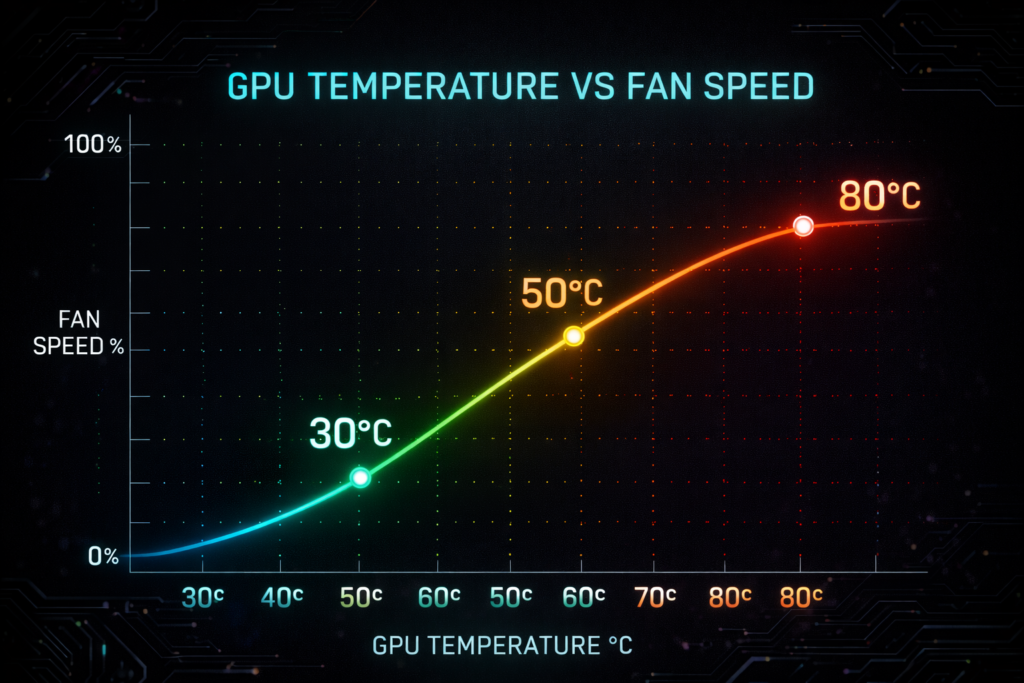
Zero RPM mode is an automated fan control system controlled by onboard temperature sensors and PWM (Pulse Width Modulation).
Here’s how it works:
- Below 50°C, fans stay off
- Around 55°C, fans start slowly
- 60 to 75°C Fan speed increases gradually
- 80°C+ Aggressive cooling curve activates
This smart control system balances:
- Thermal threshold stability
- Acoustic performance
- GPU lifespan
- Power efficiency
Zero RPM does NOT damage your GPU. In fact, it protects fan motors from unnecessary continuous spinning.
Safe GPU Temperature Ranges (Idle vs Gaming)
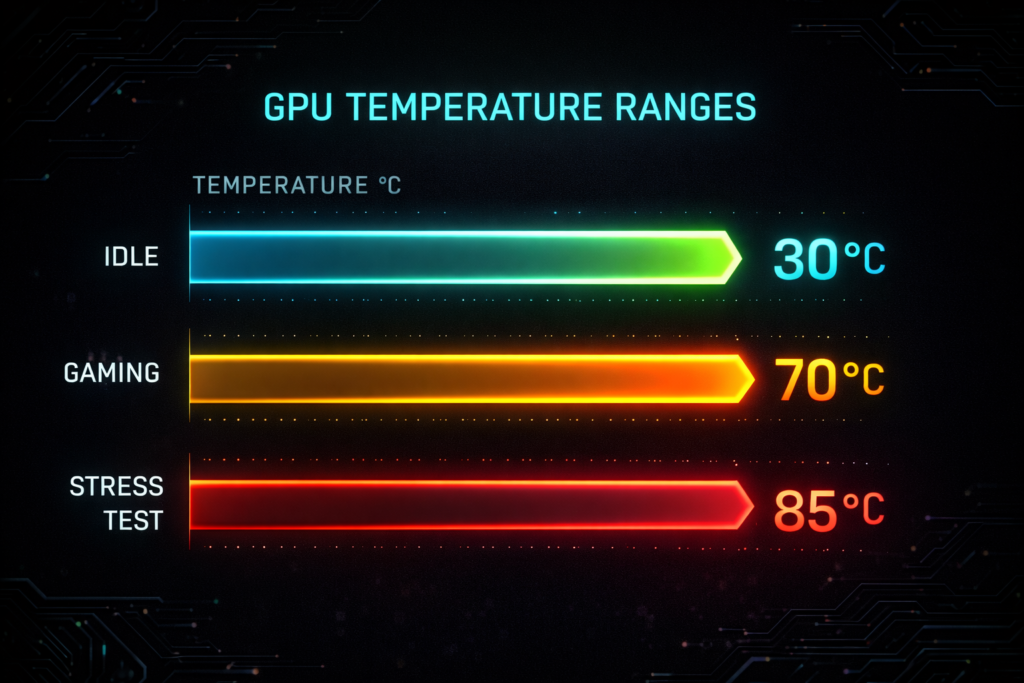
Here is a realistic 2026 temperature safety chart:
| Usage Type | Safe GPU Temperature Range |
| Idle | 30°C to 50°C |
| Video Playback | 40°C to 60°C |
| Light Gaming | 55°C to 75°C |
| AAA Gaming | 65°C to 85°C |
| Stress Testing | 75°C to 90°C |
| Critical Range | Above 90°C |
Important:
Modern GPUs are designed to handle temperatures up to 95°C before emergency thermal throttling begins. However, for long-term health, keeping your GPU under 85°C during gaming is ideal.
For a detailed explanation of how modern GPUs manage fan speed and temperature thresholds across different manufacturers, check out this guide on whether GPU fans should always be on for optimal performance and cooling.
Constant Spinning vs Zero RPM: Which Is Better?
For most users, Zero RPM mode is the smarter option.
Zero RPM Advantages:
- Near-silent PC operation
- Lower dust accumulation
- Reduced bearing wear
- Same gaming performance
Constant Fan Spinning Advantages:
- Slightly lower idle temperature
- Better in poor airflow cases
- Helpful in hot climates
If your case airflow is optimized and ambient temperature is normal, Zero RPM mode provides the best balance between cooling efficiency and hardware longevity.
Should You Disable Zero Fan Mode?
You should only disable it if:
- Idle temperatures stay above 55°C
- Your PC case has poor ventilation
- You live in a high ambient temperature environment
- You prefer continuous airflow for peace of mind
Otherwise, disabling it gives minimal real-world benefit.
How to Make GPU Fans Always Spin
You can override default behavior using GPU tuning software.
You can override default behavior using GPU tuning software. If you have also adjusted performance settings, learn what does overclocking a GPU do before modifying your fan curve.
Common tools:
- MSI Afterburner
- AMD Adrenalin Software
- GPU manufacturer utilities
Steps Using MSI Afterburner:
- Install and open the software
- Click Settings
- Go to the Fan tab
- Enable “User-defined software automatic fan control.”
- Create a custom fan curve
Start with:
30°C = 30%
50°C = 50%
70°C = 70%
80°C = 85%
Test stability with a 20-minute gaming session.
Avoid running fans at 100% constantly unless troubleshooting overheating.
Advanced Cooling Insight (What Most Articles Don’t Tell You)
Many users only monitor “GPU core temperature.”
But modern GPUs also have:
- Hotspot temperature
- VRM temperature
- Memory junction temperature
Sometimes fans may spin even when core temp looks fine because hotspot or memory temps are higher.
Also, fan lifespan depends on bearing type:
- Sleeve bearings wear faster with constant spinning
- Dual ball bearings last longer under continuous rotation
Understanding this helps you decide whether constant fan mode is worth it.
Also Read: What Does GPU Bound Mean?
When Should You Worry?
Take immediate action if:
- GPU exceeds 90°C regularly
- Fans never spin under heavy load
- Fans run at 100% constantly
- You smell burning components
- You experience sudden shutdowns
Overheating can also affect other components. Here is how to check motherboard damage from the GPU if you suspect deeper hardware issues.
Common causes:
- Dust blockage in the heatsink
- Dried thermal paste
- Poor case airflow
- Incorrect fan curve
- Faulty fan motor
Cleaning your PC every 6 months significantly improves cooling efficiency.
GPU Fan Troubleshooting Checklist:
If fans do not spin:
- Check the temperature with the monitoring software
- Update GPU drivers
- Reset custom fan curve
- Run a stress test
- Inspect for dust
If fans are too loud:
- Adjust fan curve
- Improve case ventilation
- Replace old thermal paste
If only one fan spins:
- Inspect physical obstruction
- Check for cable issues
- Contact the manufacturer if under warranty
Expert Tip for Better Airflow:
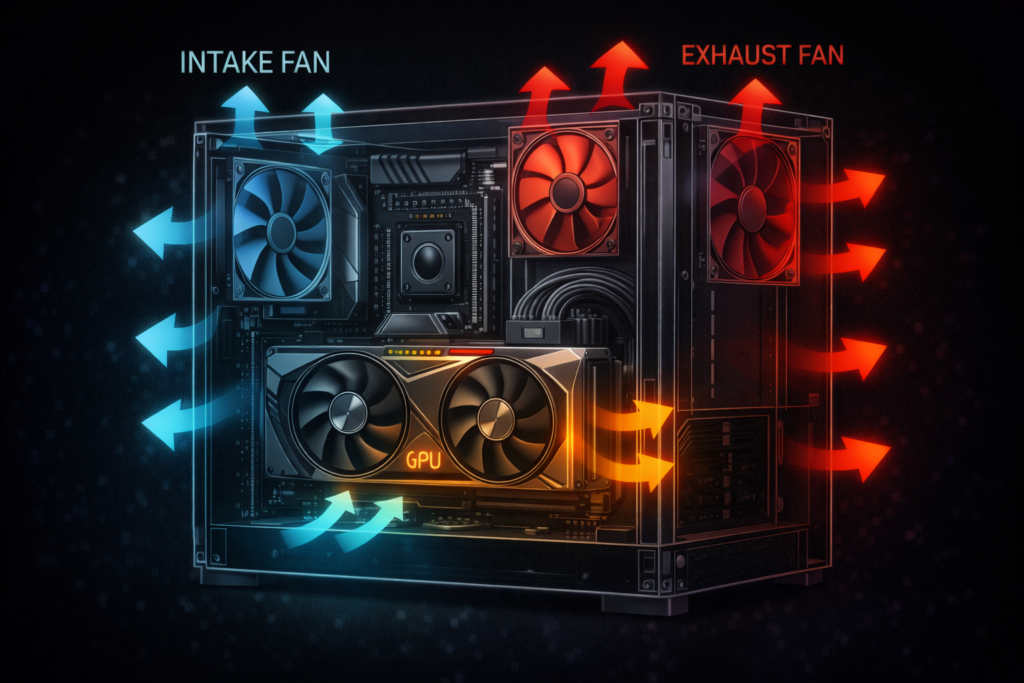
Even the best GPU cooling system fails in a bad airflow case.
For optimal cooling:
- Use at least two intake and one exhaust fan
- Maintain positive air pressure
- Keep cables organized
- Clean dust filters regularly
Good airflow reduces GPU temperature by 3 to 7°C without changing fan settings.
FAQ’s
Should GPU fans always spin?
No, Modern GPUs stop fans at low temperatures and activate them only when needed.
Is it normal if GPU fans do not spin at startup?
Yes, if temperatures are low, fans remain off.
Can Zero RPM damage the GPU?
No, it is designed to protect the fan’s lifespan and reduce wear.
At what temperature should GPU fans turn on?
Most GPUs activate fans between 50°C and 60°C.
How do you fix GPU fans not spinning during gaming?
Check temperatures, reset fan curve, update drivers, and ensure temperatures exceed 60°C where activation usually begins.
Conclusion:
GPU fans do not always need to spin. Modern graphics cards use smart cooling systems that activate fans only when temperatures rise. If your GPU fans stop at idle but work during gaming, this is normal. Focus on keeping your GPU temperature within safe limits, and adjust your fan curve only if needed for better airflow.
This guide gives you full control over your GPU fan behavior while keeping your hardware safe and efficient.