
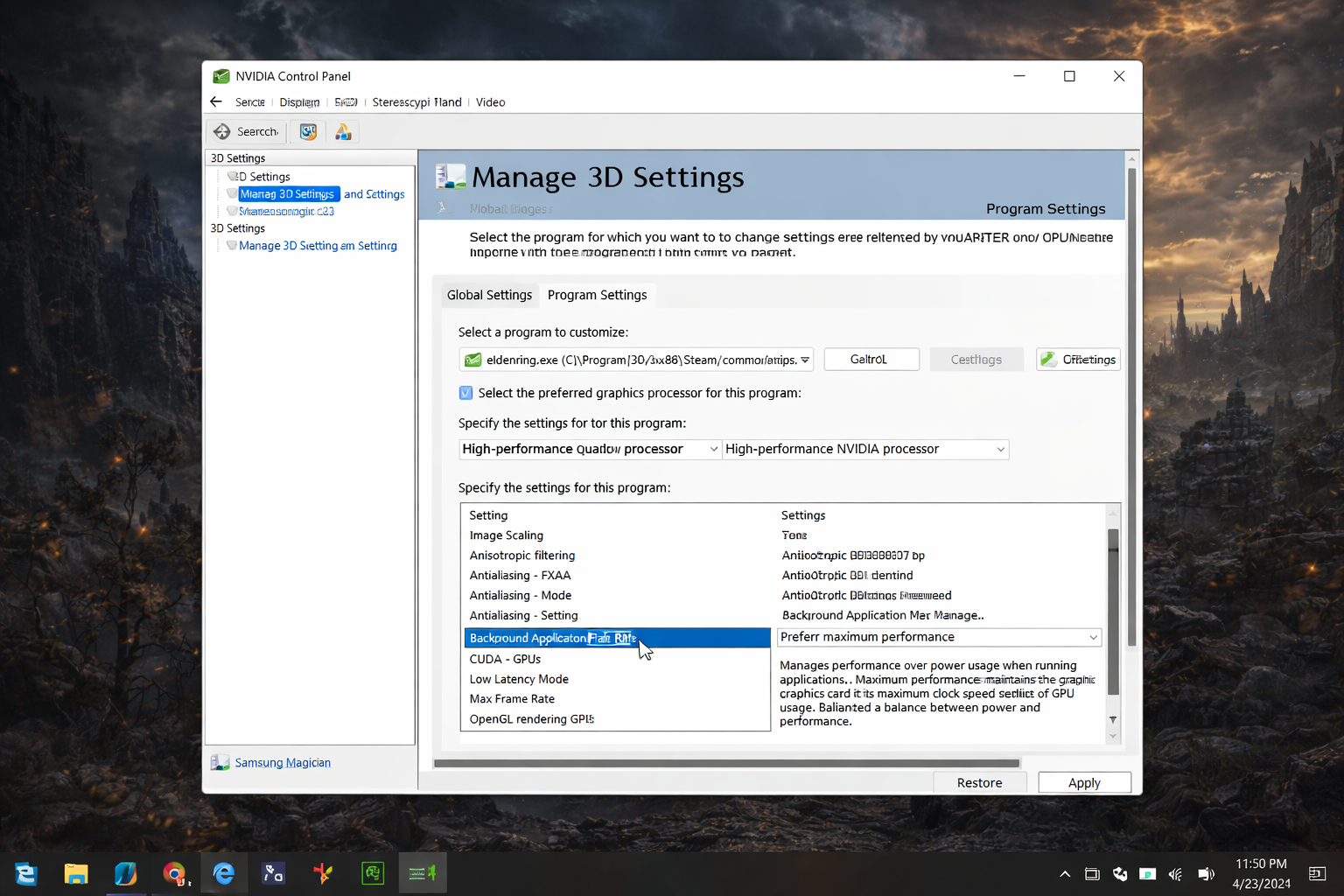
To monitor CPU temperature, you need a simple tool such as Core Temp or HWiNFO. Install the software, open it, and check real-time temperature readings. You can also use the BIOS to view the CPU temperature, but it will not update in real time while your PC is running.
If your PC slows down or overheats during gaming, checking the CPU temperature helps you identify the issue early and avoid damage.
In this guide, you will learn how to monitor CPU temperature step by step, understand safe temperature ranges, and take quick action if your CPU gets too hot.
How Can I Check CPU Temperature in Windows?
Windows does not show CPU temperature by default. You need third-party software or BIOS to check it.
Does Windows Have a Built-In CPU Temperature Checker?
No, Windows only shows:
- CPU usage
- Memory usage
It does not display temperature. For that, you need monitoring tools.
Can I Check CPU Temperature Without Software?
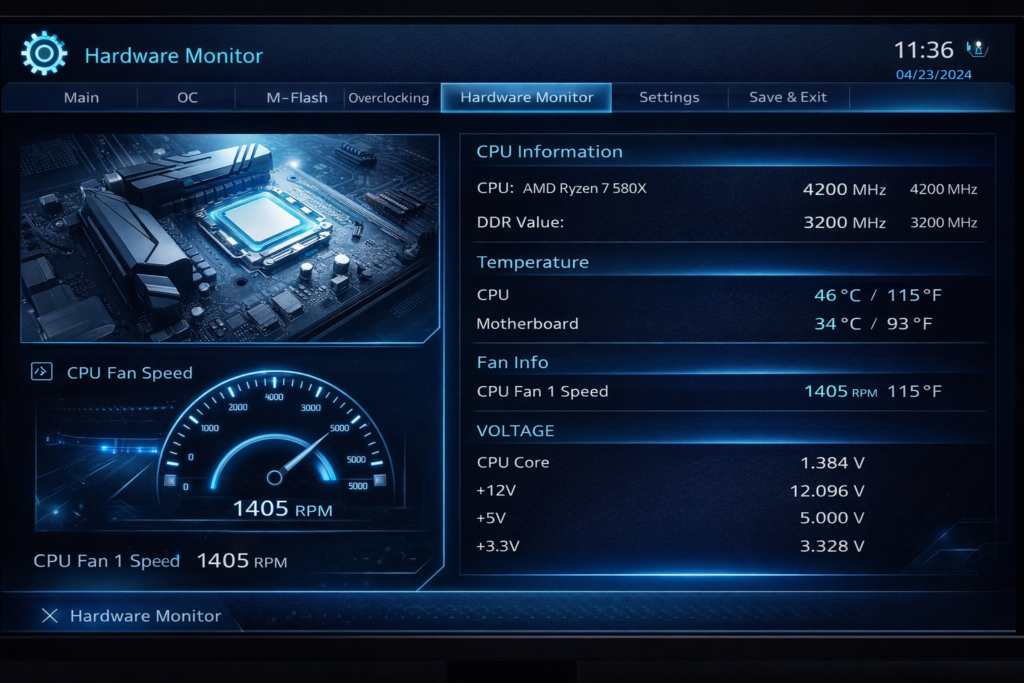
Yes, you can check it using BIOS or UEFI.
Steps:
- Restart your PC
- Press Delete, F2, or Esc
- Open Hardware Monitor
You will see CPU temperature here. However, this method is not real-time.
How Do Beginners Check CPU Temperature Easily?
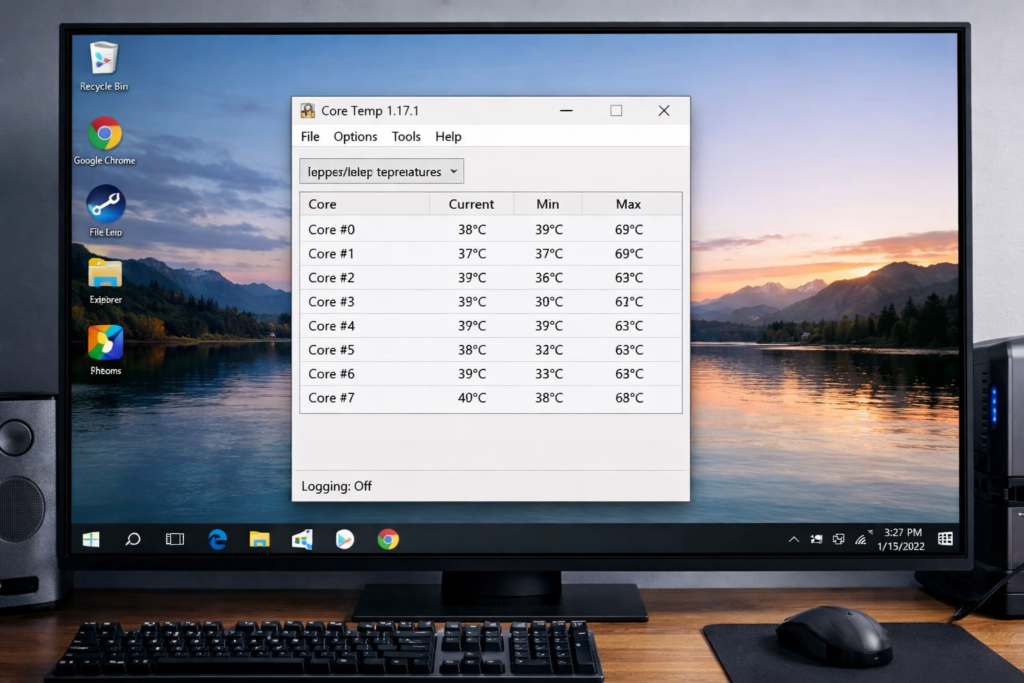
The easiest way is to use Core Temp.
Steps:
- Download and install Core Temp
- Open the software
- View temperature instantly
You can see:
- Current temperature
- Minimum and maximum values
- Load on each core
This is the fastest and most beginner-friendly method.
How Do I See GPU Temperature on My PC?
You can check GPU temperature using tools like:
- HWMonitor
- MSI Afterburner
Windows does not show GPU temperature by default.
How Do I Monitor CPU and GPU Temps Together?
Use:
- HWMonitor (best for full system info)
- MSI Afterburner (best for gaming)
These tools display both CPU and GPU temperature in one place.
What Are the Best Tools to Check CPU Temperature?
Core Temp:
- Shows per-core temperature
- Lightweight and fast
- Best for beginners
HWMonitor:
- Shows CPU, GPU, fan speed, and voltage
- Detailed system information
MSI Afterburner:
- Best for gamers
- Shows the temperature on the screen while playing
Choose based on your needs.
How Do You Check CPU Temperature Step by Step?
Steps:
- Download Core Temp or HWMonitor
- Install the software
- Open it
- Check CPU temperature
How Do You Read Temperature Data Correctly?
Focus on:
- Current temperature
- Maximum temperature under load
Example:
- Idle: 35 to 45°C
- Gaming: 65 to 80°C
If the temperature goes above 90°C, you should take action.
What Is a Safe CPU Temperature Range?
Safe temperature depends on usage and environment.
Typical values:
- Idle: 30 to 45°C
- Normal use: 50 to 70°C
- Heavy load: 70 to 85°C
Most CPUs have a limit called TjMax (maximum safe temperature). When your CPU reaches this limit, it slows down automatically to prevent damage.
How Hot Is Too Hot for a CPU?
- Above 90°C is risky
- Above 95°C may cause shutdown
This happens due to thermal throttling, where the CPU reduces speed to control heat.
Why Is CPU Temperature Important?
CPU temperature directly affects performance and lifespan.
High heat can:
- Reduce performance
- Cause lag and crashes
- Damage internal components
Why Is My CPU Temperature High?
High Temperature at Idle
- Background apps
- Dust in fans
- Poor airflow
- Old thermal paste
Sudden Temperature Spikes
- Opening heavy apps
- System updates
- Hidden processes
How Can I Reduce High CPU Temperature?
Fix Overheating Quickly
- Clean dust from fans
- Close unused apps
- Improve airflow
- Upgrade your cooler
Does Thermal Paste Lower CPU Temperature?
Yes. Applying fresh thermal paste can reduce temperature by 5 to 10°C by improving heat transfer between the CPU and the cooler.
Learn how proper thermal paste application improves CPU cooling from a trusted source
How Does Airflow Affect CPU Temperature?
Good airflow helps remove heat from your PC.
Tips:
- Use intake and exhaust fans
- Keep cables organized
- Do not block air vents
Can a Bad Cooler Cause Overheating?
Yes, A weak or damaged cooler cannot remove heat properly, which leads to high temperatures.
How Do You Monitor CPU Temperature While Gaming?
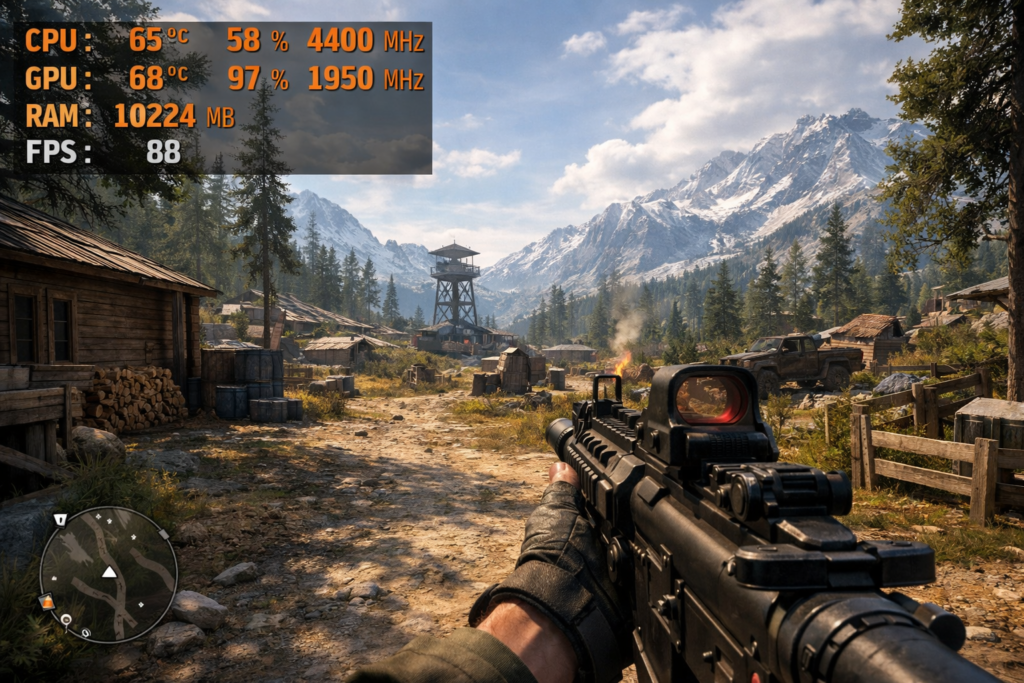
Real-time monitoring is important during gaming to avoid overheating.
Best Tool for Gaming
Use MSI Afterburner.
Steps:
- Install MSI Afterburner
- Open settings
- Go to Monitoring
- Enable CPU and GPU temperature
- Turn on the on-screen display
Now you can see the live temperature while playing.
Can I Show CPU Temperature On Screen While Gaming?
Yes, MSI Afterburner allows you to display temperature on screen during gameplay.
Thinking of overclocking? Understand what does overclocking GPU do.
What Is the Difference Between CPU and GPU Temperature?
- CPU handles system tasks
- GPU handles graphics
The GPU usually runs hotter during gaming.
Wondering which tasks stress your CPU or GPU more? See how Autocad CPU Or GPU Intensive? affects them differently.
What Is Core vs Package Temperature?
- Core temperature of each core
- Package temperature overall CPU heat
What Is Thermal Throttling?
Thermal throttling happens when the CPU slows down to reduce heat. This protects your system but lowers performance.
FAQ’s:
Can I Monitor CPU Temperature Without Software?
Yes, you can check it in BIOS or UEFI, but it will not show real-time temperature while using your PC.
Is Monitoring CPU Temperature Important?
Yes, it helps you prevent overheating, avoid performance drops, and protect your hardware from damage.
Do All PCs Show CPU Temperature by Default?
No, most systems do not show CPU temperature unless you use third-party tools.
What Is the Best Way to Monitor CPU Temperature on Windows?
The best way is to use tools like Core Temp or HWMonitor, which show real-time temperature, core readings, and system data in a simple interface.
What Should I Do If My CPU Temperature Is Too High?
Clean your PC fans, improve airflow, close heavy apps, and replace thermal paste if needed to reduce temperature quickly.
Conclusion:
Once you understand how to monitor CPU temperature, managing your PC becomes easy. Regular checks help you avoid overheating and performance issues. Use simple tools, follow safe temperature ranges, and take quick action when needed to keep your system stable and fast.